# Colors

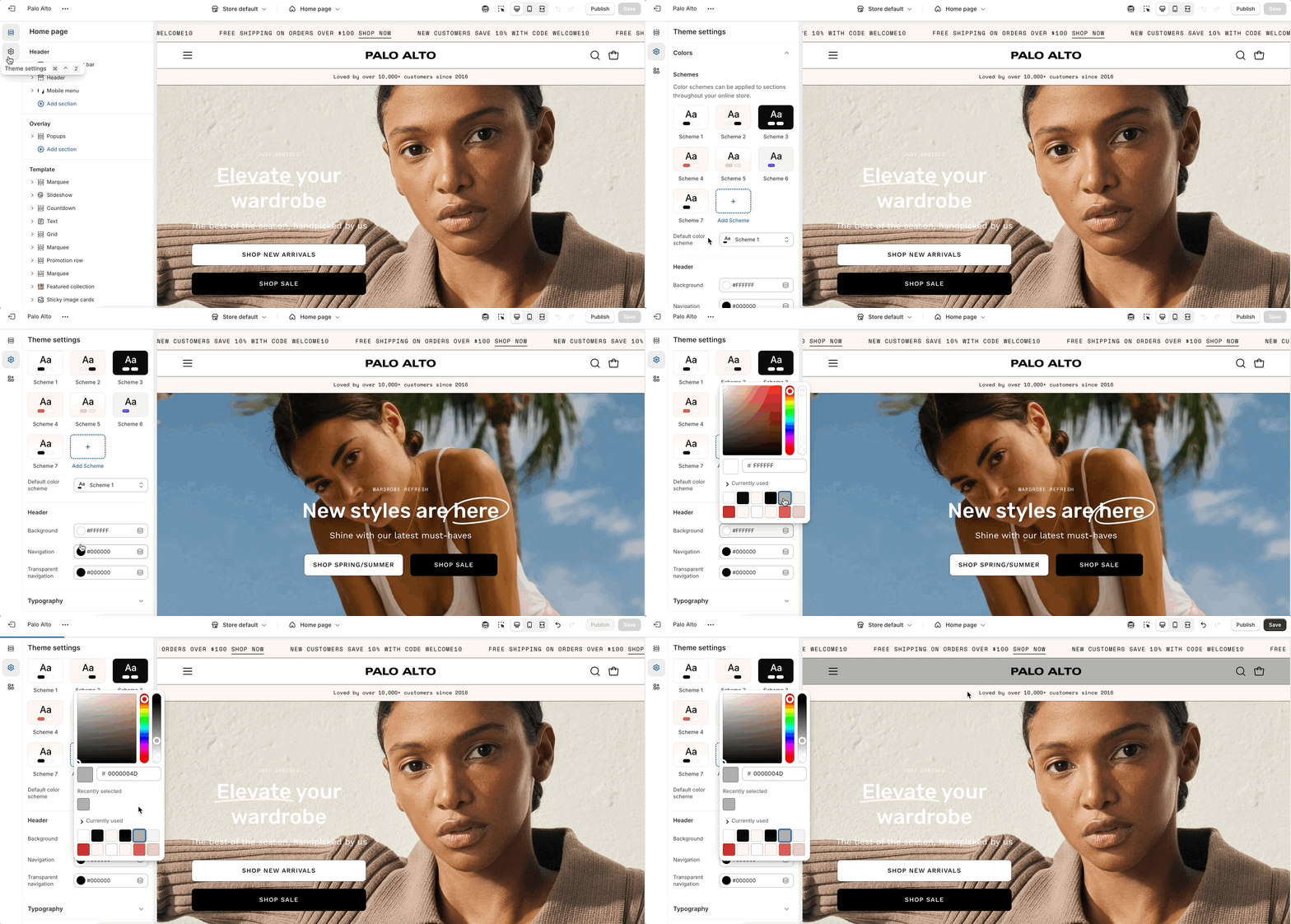
The color settings provide complete control over your theme’s color palette, including section backgrounds, text, buttons, links, quick-add buttons, and upsell areas. It lets you define reusable color schemes and apply them across your store for a consistent brand look.

<figure><img src="https://891064830-files.gitbook.io/~/files/v0/b/gitbook-x-prod.appspot.com/o/spaces%2Fz8oqtXqtdhOM4CxRzekr%2Fuploads%2Fm2zwpbExbtvPWOPpfU9R%2Fcolors-theme-settings.gif?alt=media&#x26;token=ca41403b-00ab-4c3b-b412-cdb2ce297be7" alt=""><figcaption></figcaption></figure>

Try to use colors that are high in contrast. It will make your text easier to read. Here is a great contrast checker:

{% embed url="<https://webaim.org/resources/contrastchecker/>" %}

{% hint style="info" %}
Note: Some sections have color settings. Section settings will overwrite the theme settings.
{% endhint %}

<table><thead><tr><th width="197.29864501953125">Settings</th><th width="192.270751953125" align="center">Type</th><th>Description</th></tr></thead><tbody><tr><td><strong>Schemes</strong></td><td align="center"></td><td></td></tr><tr><td>Color scheme</td><td align="center"><code>color_scheme_group</code></td><td>Configure a full set of color tokens for your theme, grouped into logical areas (Section, Primary button, Secondary button, Additional, Quick add, Upsells).</td></tr><tr><td>Default color scheme</td><td align="center"><code>color_scheme</code></td><td>Selects which color scheme is applied globally by default.</td></tr><tr><td><strong>Header</strong></td><td align="center"></td><td></td></tr><tr><td>Background</td><td align="center"><code>color</code></td><td>Sets the overall page background color.</td></tr><tr><td>Navigation</td><td align="center"><code>color</code></td><td>Color for header navigation links.</td></tr><tr><td>Transparent navigation</td><td align="center"><code>color</code></td><td>Link color when header background is transparent.</td></tr></tbody></table>
