> For the complete documentation index, see [llms.txt](https://palo-alto.presidiocreative.com/llms.txt). Markdown versions of documentation pages are available by appending `.md` to page URLs; this page is available as [Markdown](https://palo-alto.presidiocreative.com/palo-alto-4.5/products/custom-color-swatches.md).
# Swatches
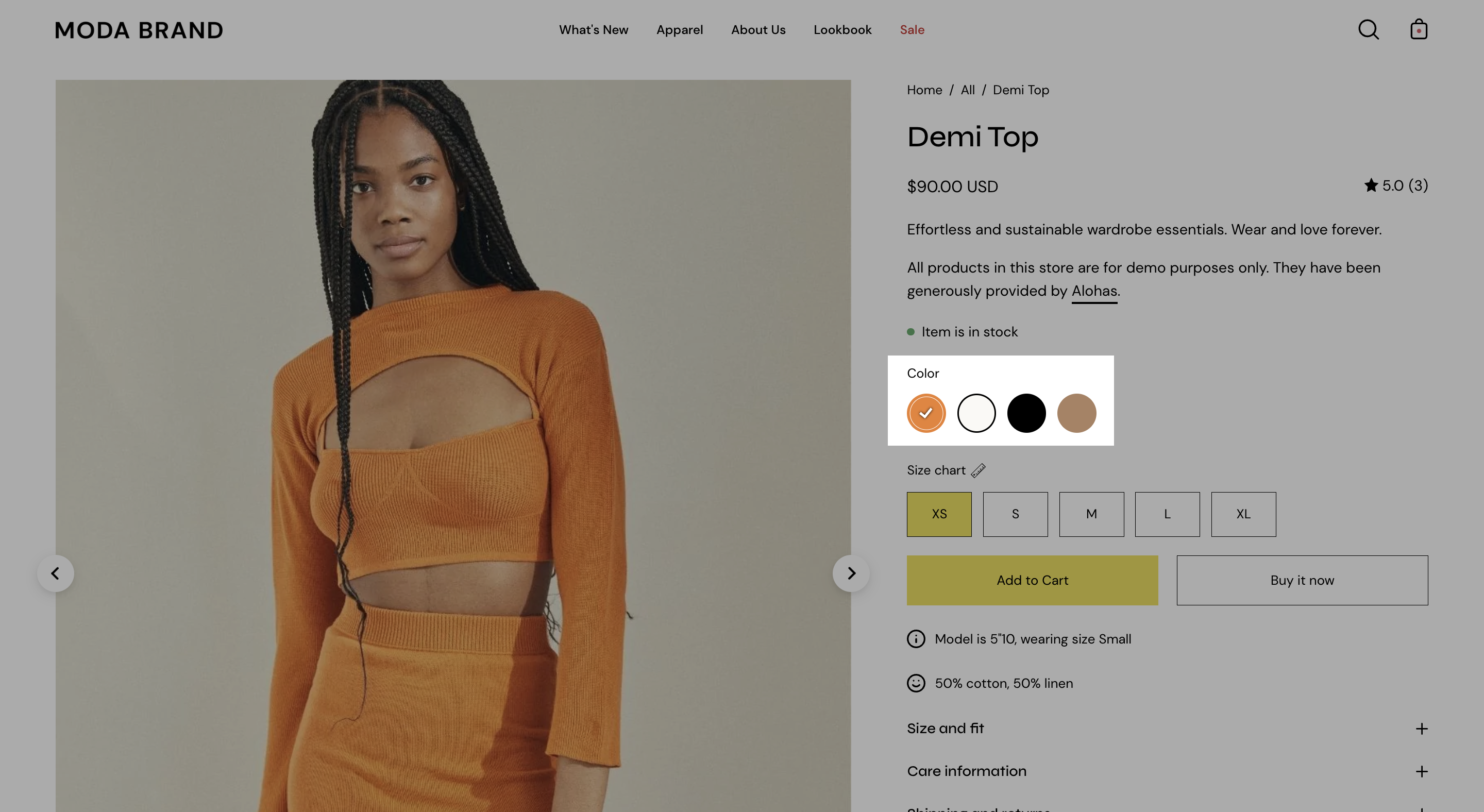
Palo Alto will display swatches for color variants in collection filtering and the product form on product pages.
Product form, default product template
{% hint style="success" %}
Palo Alto will detect if your variant label is Color or Colour and automatically display swatches
{% endhint %}
## Customize the trigger words
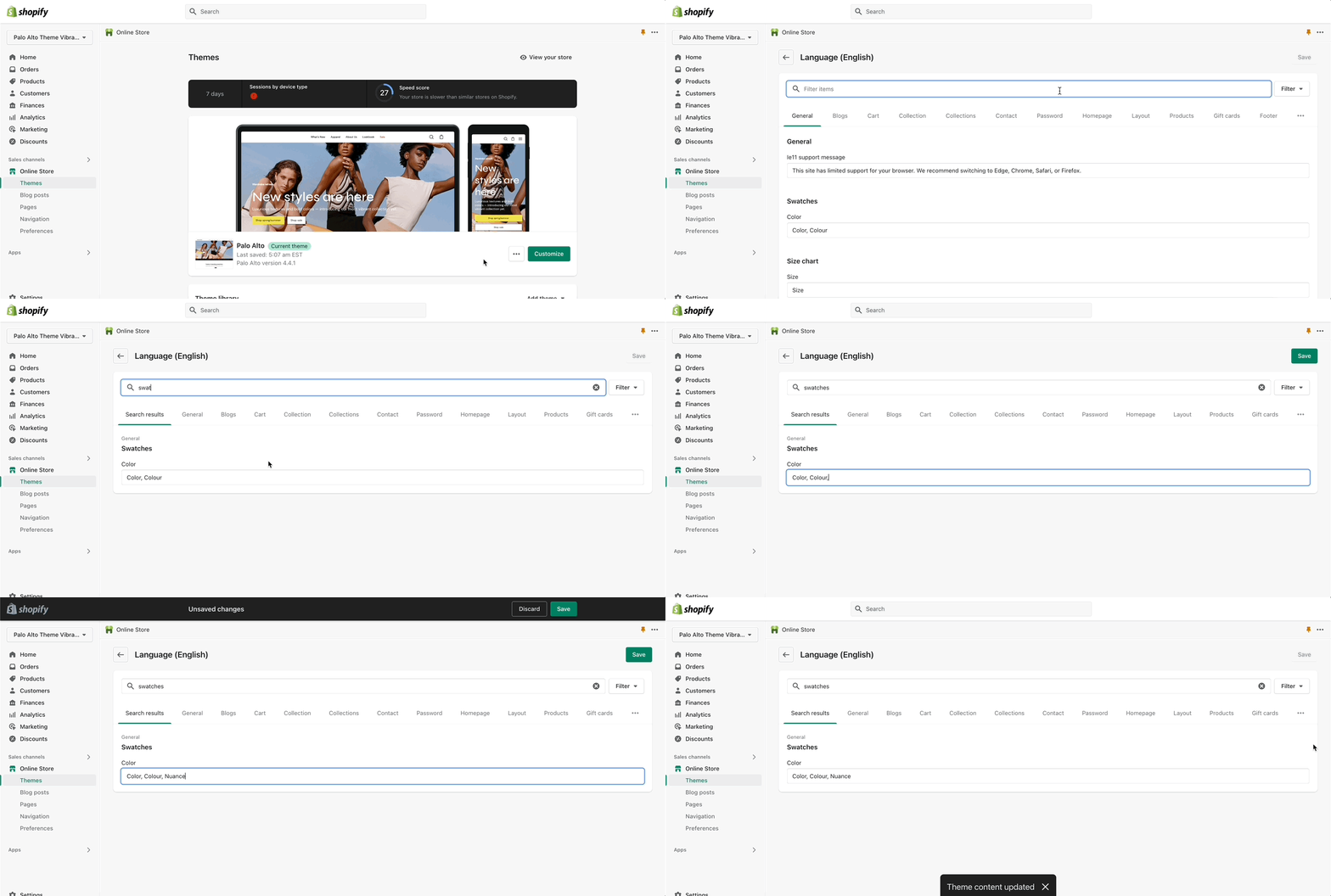
To customize the trigger words which activate swatches, use the Language Editor (Edit languages) and add or modify the values:
Change trigger words by using the Language Editor
You can add more trigger words that will help use swatches for other options.
The result is the same and you can use different custom swatches as well.
## Colors
Palo Alto can easily detect simple color names and convert them to swatches. There are a total of 140 color names Palo Alto can detect, all other more complex names will be represented by a default grey color swatch.
You can upload your own custom color names and graphics as described below. Here is a full list of color names that will automatically be converted to swatches: [Color names list](https://groupthought.com/pages/swatch-color-names)
## Customizing
If your products have color names other than the listed colors in the [Color names list](https://groupthought.com/pages/swatch-color-names), you can add your own color names and values or upload images to the Assets folder:
### Add custom color names and values to swatches.json
Use the `swatches.json` file located in the **Assets** folder to add your own custom names and HEX color values:

To find additional HEX color codes, visit:
### Add custom images to the assets folder
With Palo Alto, you can upload your own custom swatch images and display them on product and collection pages.
How to:
{% hint style="success" %}
* Create a small square image (60x60 or 100x100 for best results)
* Upload to the **Assets** folder
* Modify `swatches.json` to include your color name and image
{% endhint %}
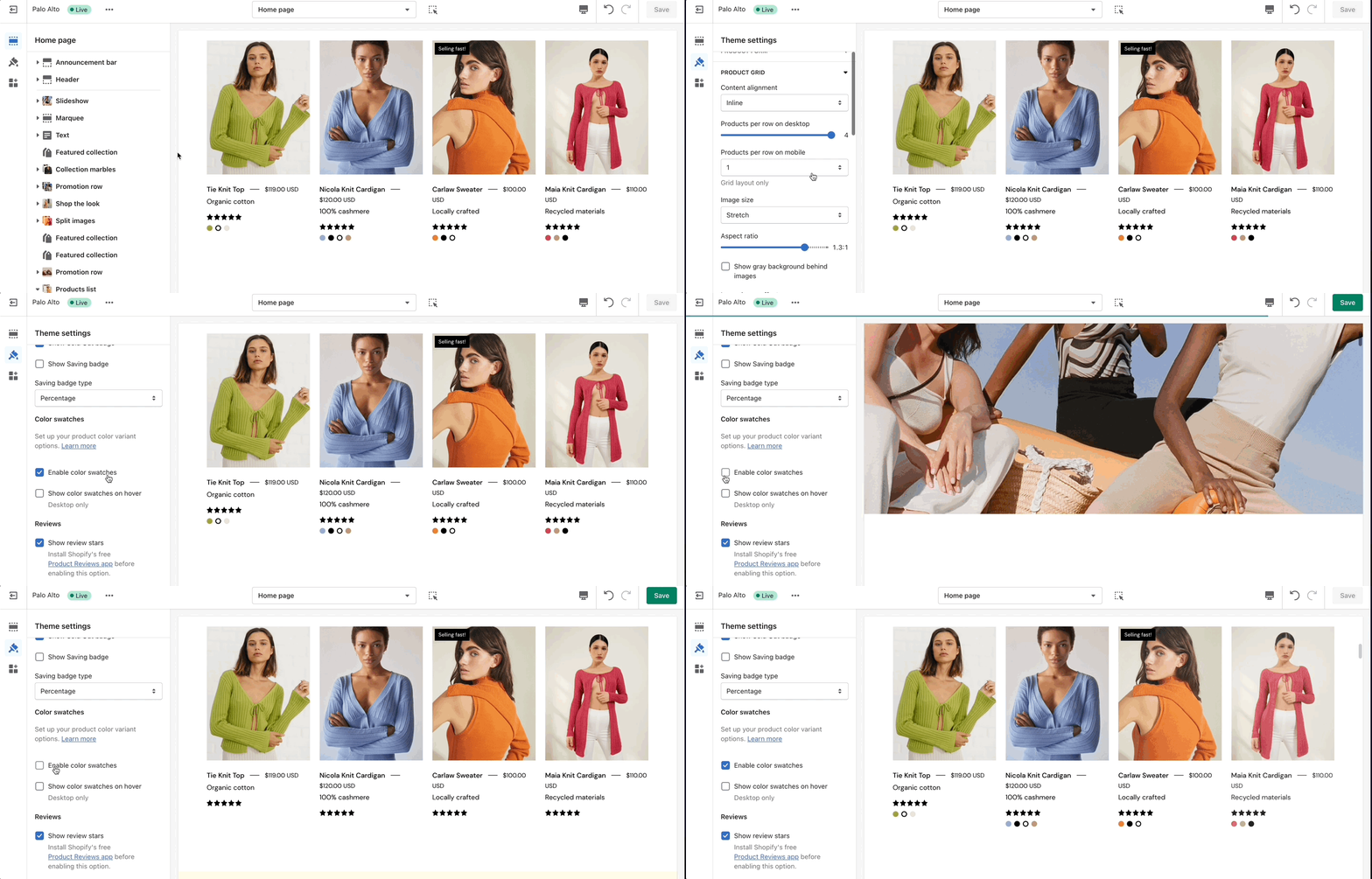
## Disabling swatches
Swatches can be toggled on and off in the Theme settings under Product Grid: