> For the complete documentation index, see [llms.txt](https://palo-alto.presidiocreative.com/llms.txt). Markdown versions of documentation pages are available by appending `.md` to page URLs; this page is available as [Markdown](https://palo-alto.presidiocreative.com/palo-alto-4.6/header/mega-menu.md).
# Mega Menu
Setting up a Mega Menu for your header
### What is a Mega Menu
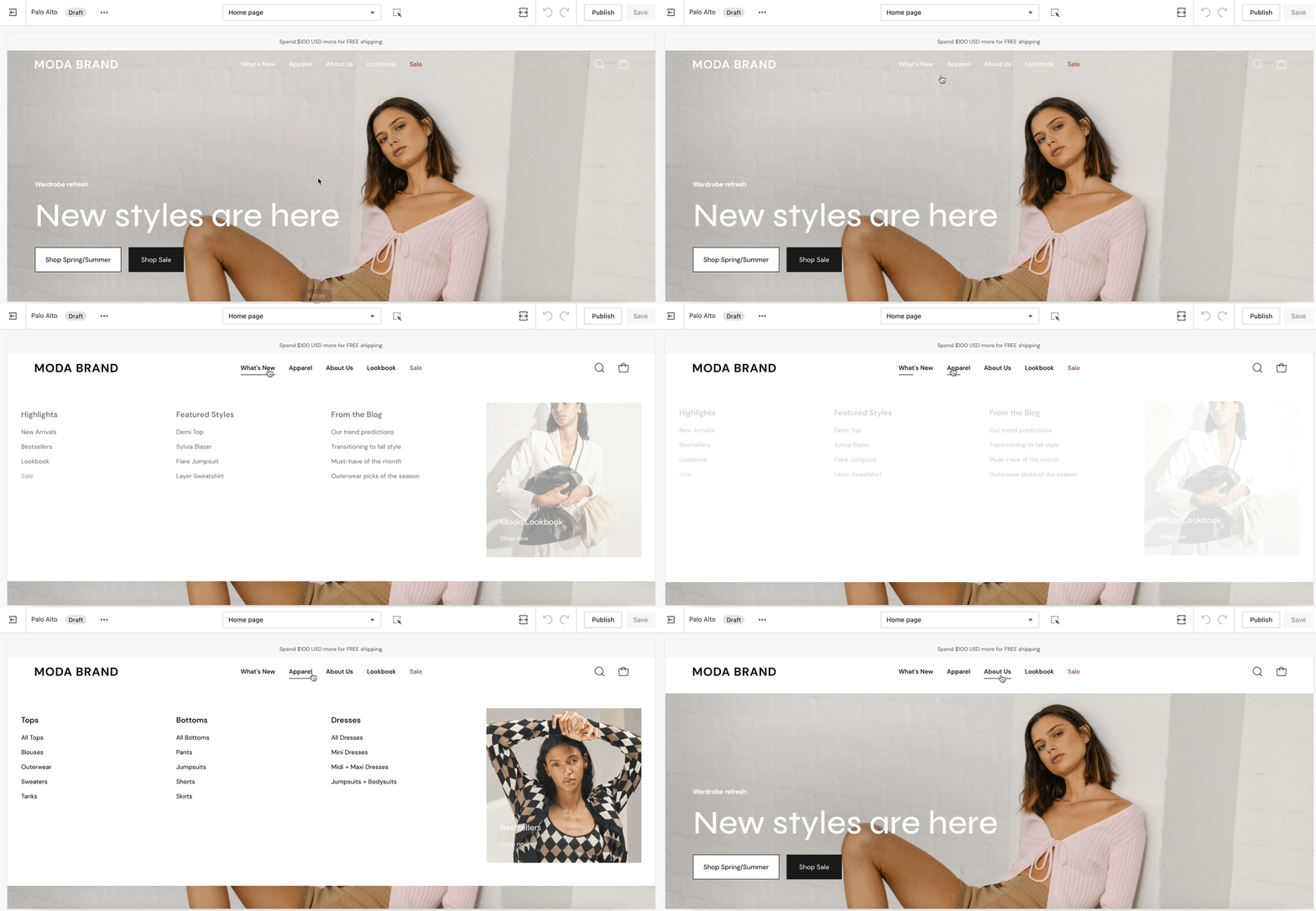
A Mega Menu is a stylized submenu that allows you to also add an image to your navigation. It can be used to put more links together and group them in a form of subcategories.
{% hint style="success" %}
The Mega Menu in Palo Alto 4.6.0 works automatically based on two criteria:
1 - If there is an **Image** selected for the submenu, the Mega Menu is enabled.
2 - If there are **third-level links**, the Mega Menu is enabled.
{% endhint %}
{% hint style="warning" %}
**Note:** The Mega Menu is automatically ***disabled*** when the Hamburger navigation is enabled.
{% endhint %}
### How to add a new Mega Menu
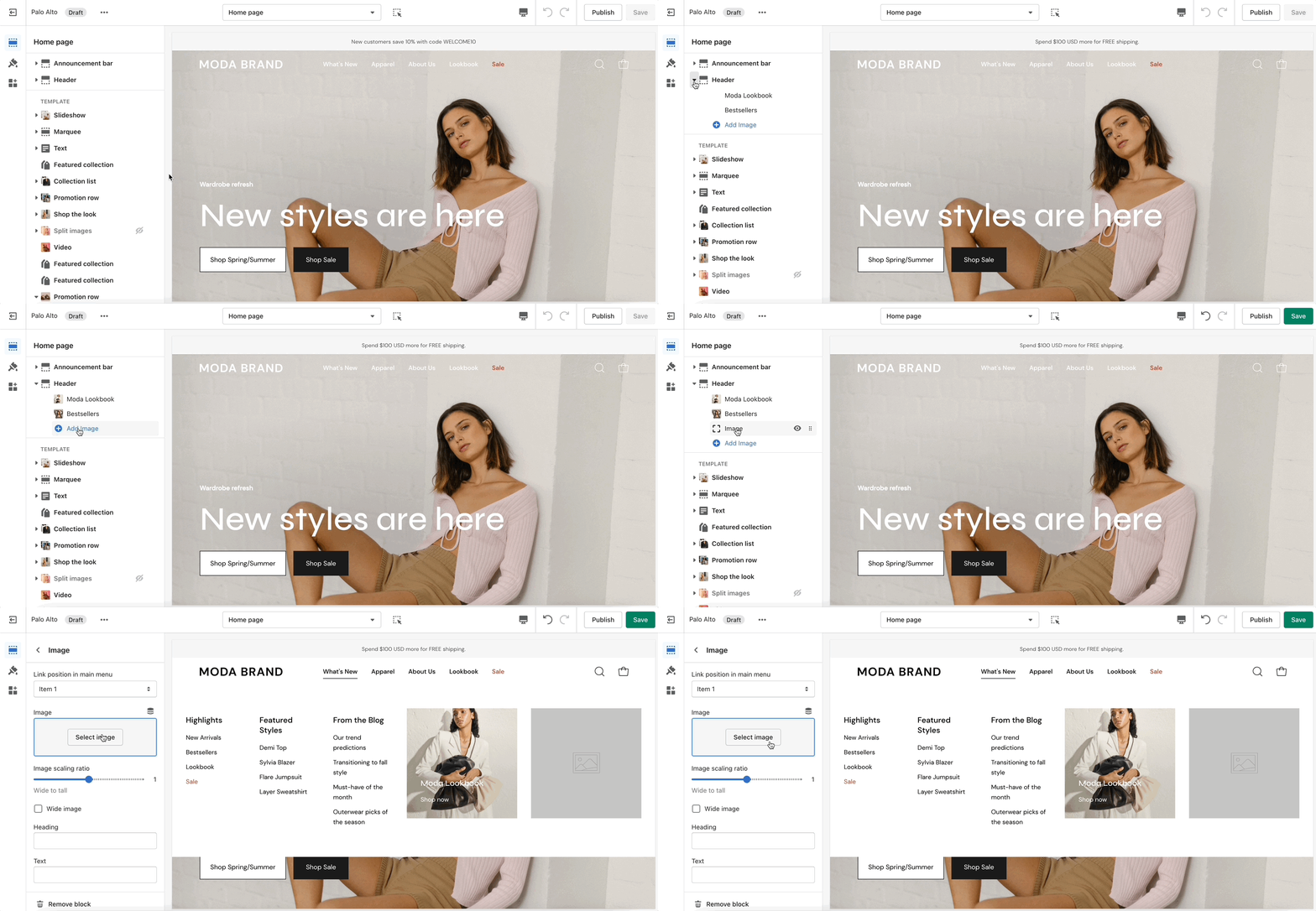
To add a new Mega Menu you need to click on the **Header** section arrow to expand it after which click on 'Add image'.
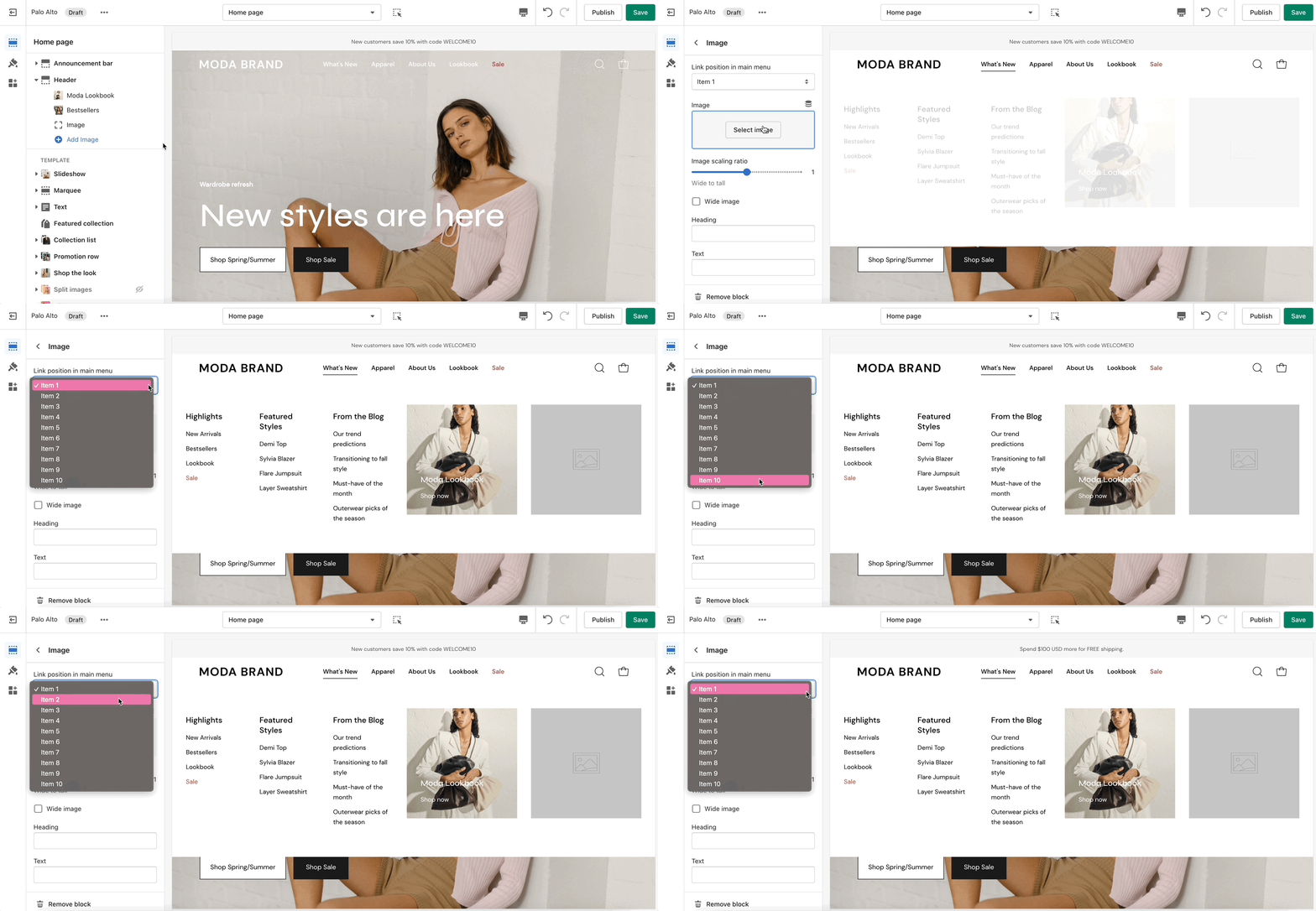
Setting up the Mega Menu can be done by accessing the block settings.
Here you will find the option to add it under any first-level link in your header as well as the options to add the image.
To get a list of links like the one from our demo you'll need to simply set them up from your navigation menu as standard drop-down menus.
You can learn more about this in Shopify's great articles on the topic.
{% embed url="" %}