> For the complete documentation index, see [llms.txt](https://palo-alto.presidiocreative.com/llms.txt). Markdown versions of documentation pages are available by appending `.md` to page URLs; this page is available as [Markdown](https://palo-alto.presidiocreative.com/palo-alto-4.3/sections/using-sections.md).
# How to use sections
Customize your store using these Palo Alto sections
## About our Sections
Palo Alto comes complete with 20+ professional theme sections to help you merchandise your online store. Sections can be added to any page on your store.
Discover the complete range of sections and their settings. Experiment by adding different types of sections and section blocks to the homepage and the other pages within your store.
{% tabs %}
{% tab title="Product sections" %}
* [Collection list](/palo-alto-4.3/sections/product-sections.md#collection-list)
* [Collections marble](/palo-alto-4.3/sections/product-sections.md#collection-marbles)
* [Featured collection](/palo-alto-4.3/sections/product-sections.md#featured-collection)
* [Products list](/palo-alto-4.3/sections/product-sections.md#products-list)
* [Featured product](/palo-alto-4.3/sections/product-sections.md#featured-product)
* [Tab collections](/palo-alto-4.3/sections/product-sections.md#tab-collections)
* [Shop the look](/palo-alto-4.3/sections/product-sections.md#shop-the-look)
* [Mosaic](/palo-alto-4.3/sections/product-sections.md#mosaic)
{% endtab %}
{% tab title="Image sections" %}
* [Icons Row](/palo-alto-4.3/sections/image-sections.md#icons-row)
* [Image with text](/palo-alto-4.3/sections/image-sections.md#image-with-text)
* [Image accordions](/palo-alto-4.3/sections/image-sections.md#image-accordions)
* [Overlapping images](/palo-alto-4.3/sections/image-sections.md#overlapping-images)
* [Text columns with images](/palo-alto-4.3/sections/image-sections.md#text-columns-with-images)
* [Banner with text columns](/palo-alto-4.3/sections/image-sections.md#banner-with-text-columns)
* [Split images](/palo-alto-4.3/sections/image-sections.md#split-images)
* [Logo list](/palo-alto-4.3/sections/image-sections.md#logo-list)
* [Slideshow](/palo-alto-4.3/sections/image-sections.md#slideshow)
* [Video](/palo-alto-4.3/sections/image-sections.md#video)
{% endtab %}
{% tab title="Text sections" %}
* [Shoppable blog posts](/palo-alto-4.3/sections/text-sections.md#shoppable-blog-posts)
* [Blog posts](/palo-alto-4.3/sections/text-sections.md#blog-posts)
* [Locations](/palo-alto-4.3/sections/text-sections.md#locations)
* [Newsletter](/palo-alto-4.3/sections/text-sections.md#newsletter)
* [Press](/palo-alto-4.3/sections/text-sections.md#press)
* [Text](/palo-alto-4.3/sections/text-sections.md#text)
* [Tabs](/palo-alto-4.3/sections/text-sections.md#tabs)
* [Testimonials](/palo-alto-4.3/sections/text-sections.md#testimonials)
* [Marquee](/palo-alto-4.3/sections/text-sections.md#marquee)
* [Promo](/palo-alto-4.3/sections/text-sections.md#promo)
{% endtab %}
{% tab title="Coustom sections" %}
* [Contact form](/palo-alto-4.3/sections/custom-sections.md#contact-form)
* [Custom HTML](/palo-alto-4.3/sections/custom-sections.md#custom-html)
* [Custom liquid](/palo-alto-4.3/sections/custom-sections.md#custom-liquid)
* [Custom content](/palo-alto-4.3/sections/custom-sections.md#custom-content)
* [Grid](/palo-alto-4.3/sections/custom-sections.md#grid)
{% endtab %}
{% endtabs %}
{% hint style="success" %}
These sections can be placed on any page including:
* Home page
* Product pages
* Collection pages and Collection list
* Blog index and Blog posts
* Shopify pages
* 404 error page, Search page, Password page
* Cart page
{% endhint %}
## Section Settings
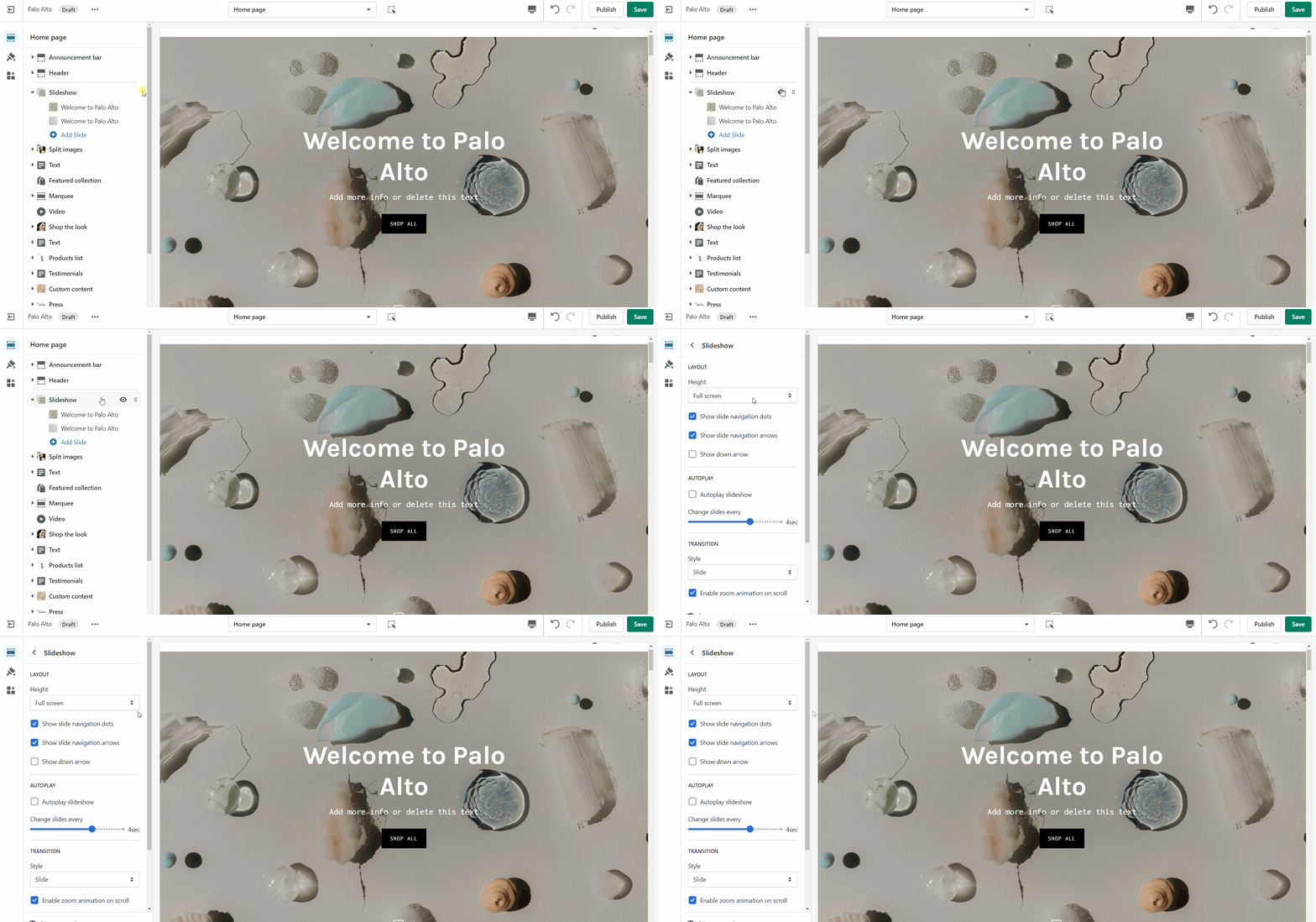
To find the primary settings for each section, click on the section name to view the settings panel. These settings control the elements of the section.
Wider desktop screens will display the settings panel on the **right side** of your screen.
## Adding a Section
{% tabs %}
{% tab title="Home page" %}
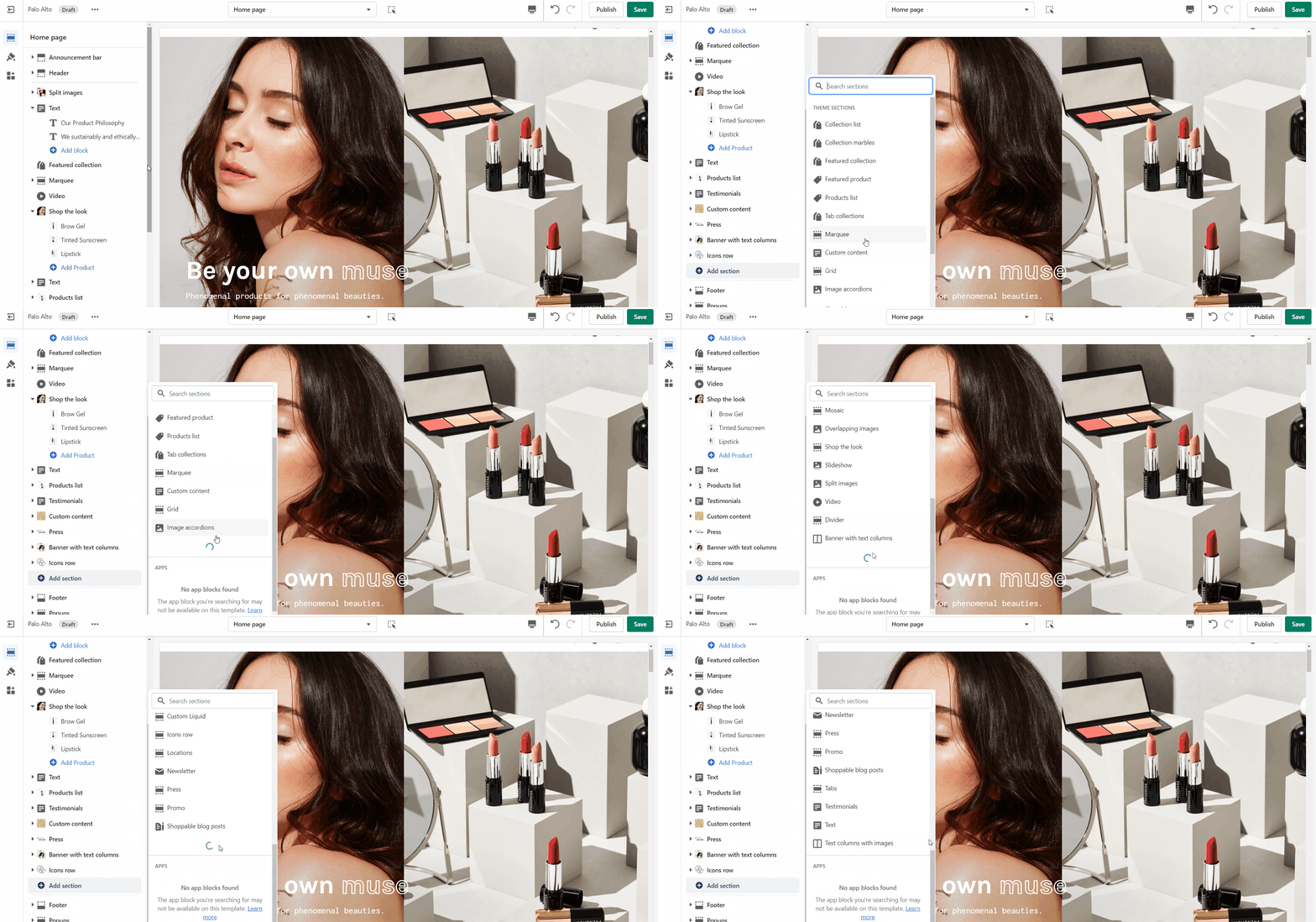
Scroll towards the bottom, above Footer and Popups. Choose **Add section**:
{% endtab %}
{% tab title="Product page" %}
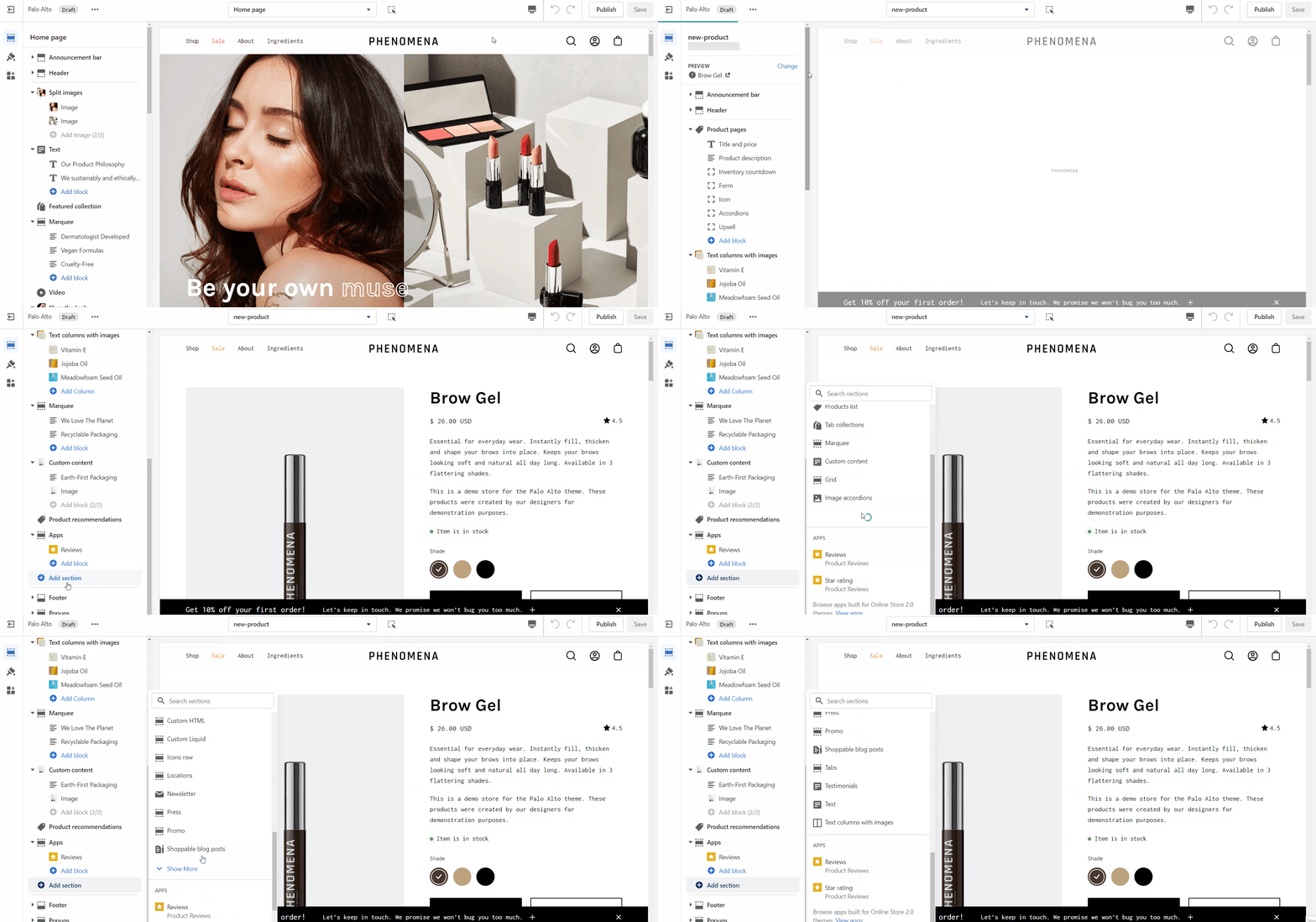
Navigate to any product page or choose the default product template. Use **Add section** located above Footer and Popups:
{% hint style="info" %}
When adding sections to the default product template, the sections and their content will appear on all your product pages.
To provide unique content for certain products, create a new template and assign a product to that template. All products using that template will have the same section content but will be different from the default template. Always create new templates on the ***live published theme*** in order for them to appear as options in your product setup.
Another method is to use Shopify's ***insert dynamic source*** option (metafields) to blocks and then customize content for each product in your product setup.
{% endhint %}
{% endtab %}
{% tab title="Other pages" %}
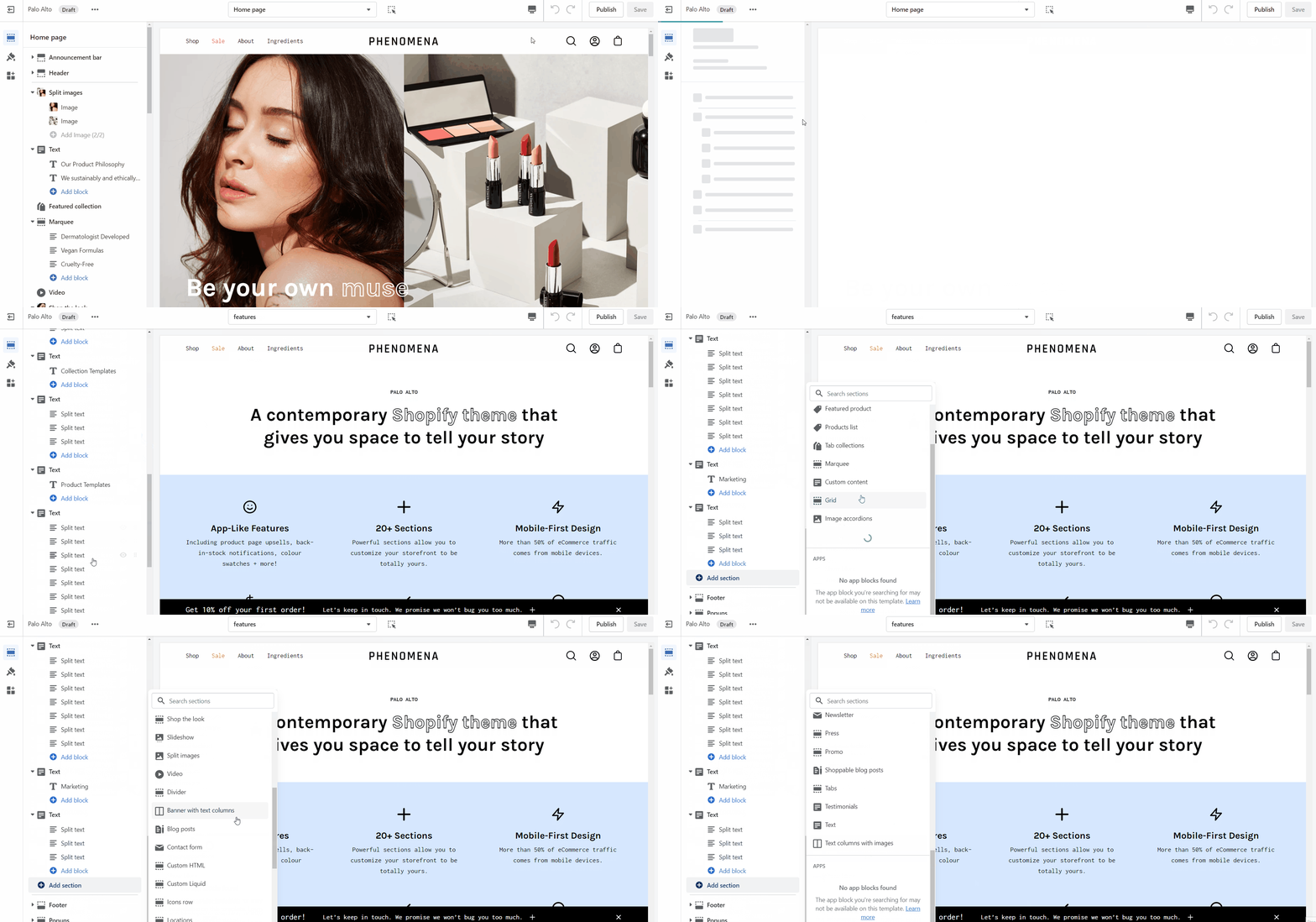
Navigate to any page on your site or choose any template from the top drop-down. Choose **Add section**, which is located above Footer and Popups on the left panel:
{% hint style="info" %}
When adding a section to a certain template. The same content will appear on all pages that are also using that template.
You can create additional templates such as a new page template or collection template and then assign a page or collection to that new template. This will allow you to create multiple pages with different content.
Experiment with creating and customizing new templates in the Theme Editor. As a second step, remember to assign that template to a certain page or collection.
For example, create a new collection template to display a different layout and include different sections. Then in the Shopify Admin under Products -> Collections, choose your collection and assign the newly created template to that collection.
🚨 **Important tip**: New templates must be created on the published theme. They will not appear as a template option for assignments if created in a draft theme. This is a Shopify Platform restriction. Always make new templates on the live published theme.
{% endhint %}
{% endtab %}
{% endtabs %}
{% hint style="info" %}
**Note**: Newly added sections adding appear at the bottom of your section list.
{% endhint %}
## Hiding a Section
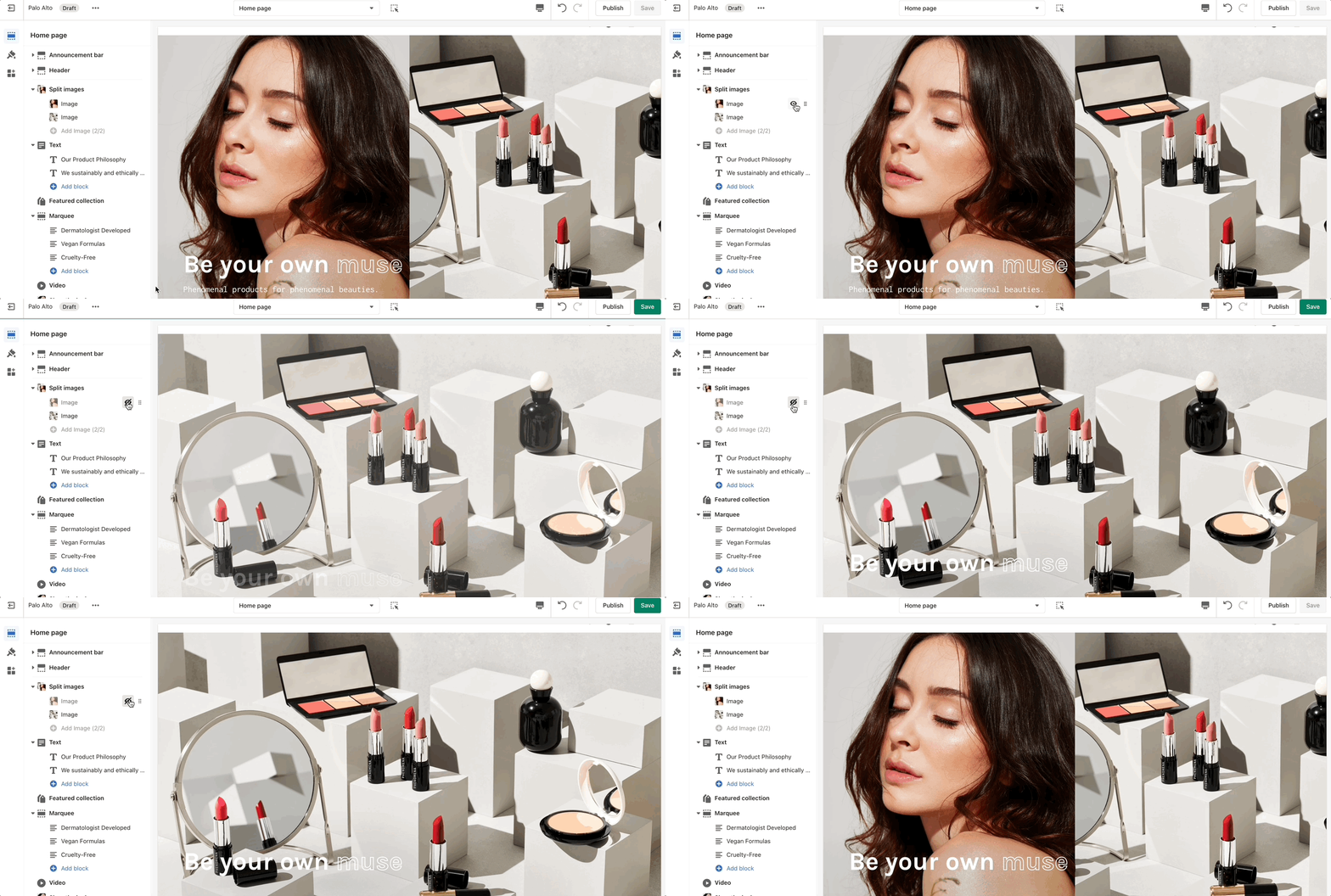
Use the eye icon next to the section title to toggle the display of the entire section:
> **Tip** - Blocks have their own eye icon, be sure to select the section eye icon to toggle display of the entire section.
## Reordering Sections
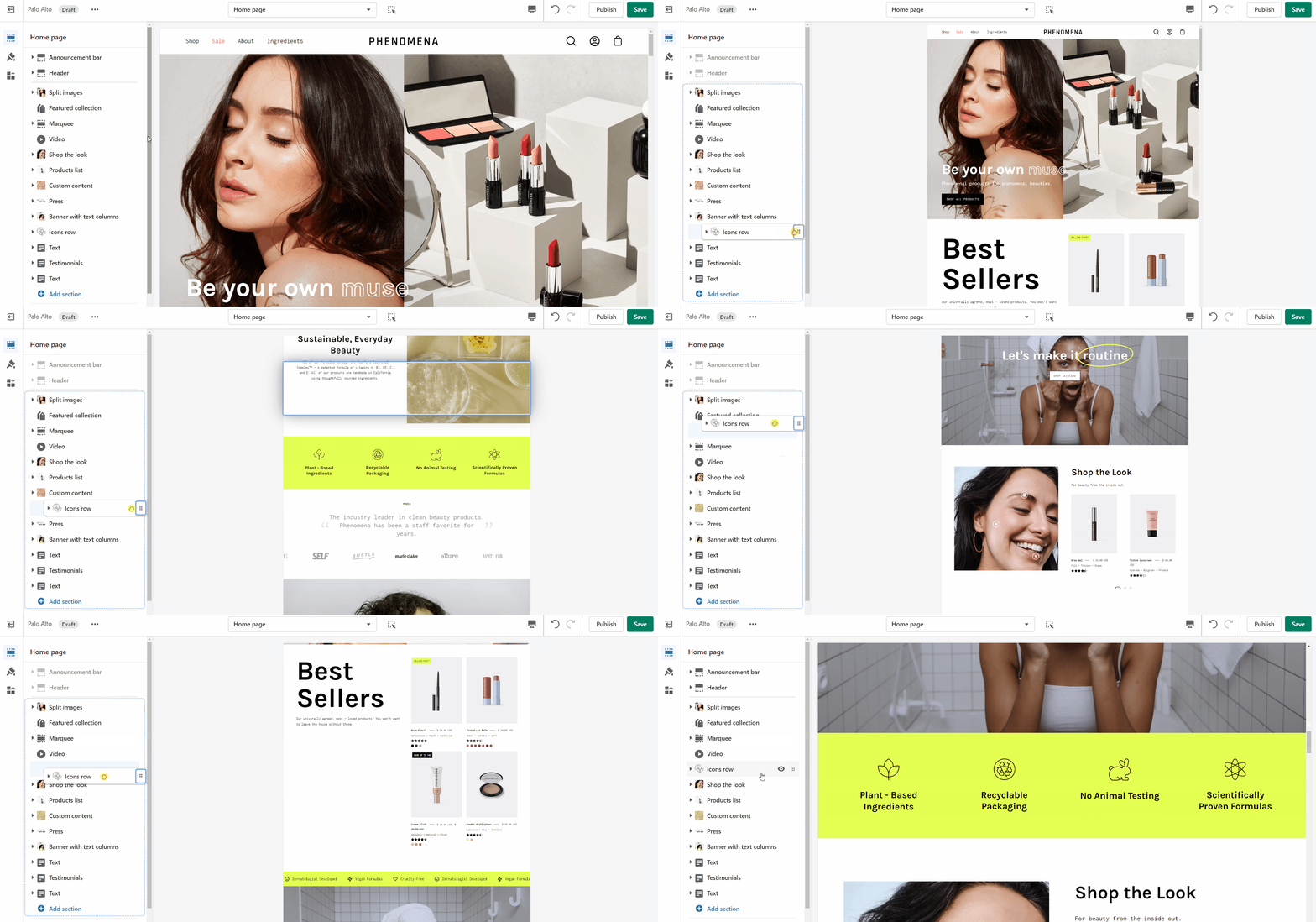
Use the handle icon which is located next to the eye icon to drag a section and drop it in a new position:
{% hint style="success" %}
Sections contain content and settings.
Experiment with different section types to add rich content on the homepage and all pages within your site.
Use the settings to adjust behavior and layout. Helpful tip, when adding new sections as they appear at the bottom of your section list.
{% endhint %}
## Theme Settings
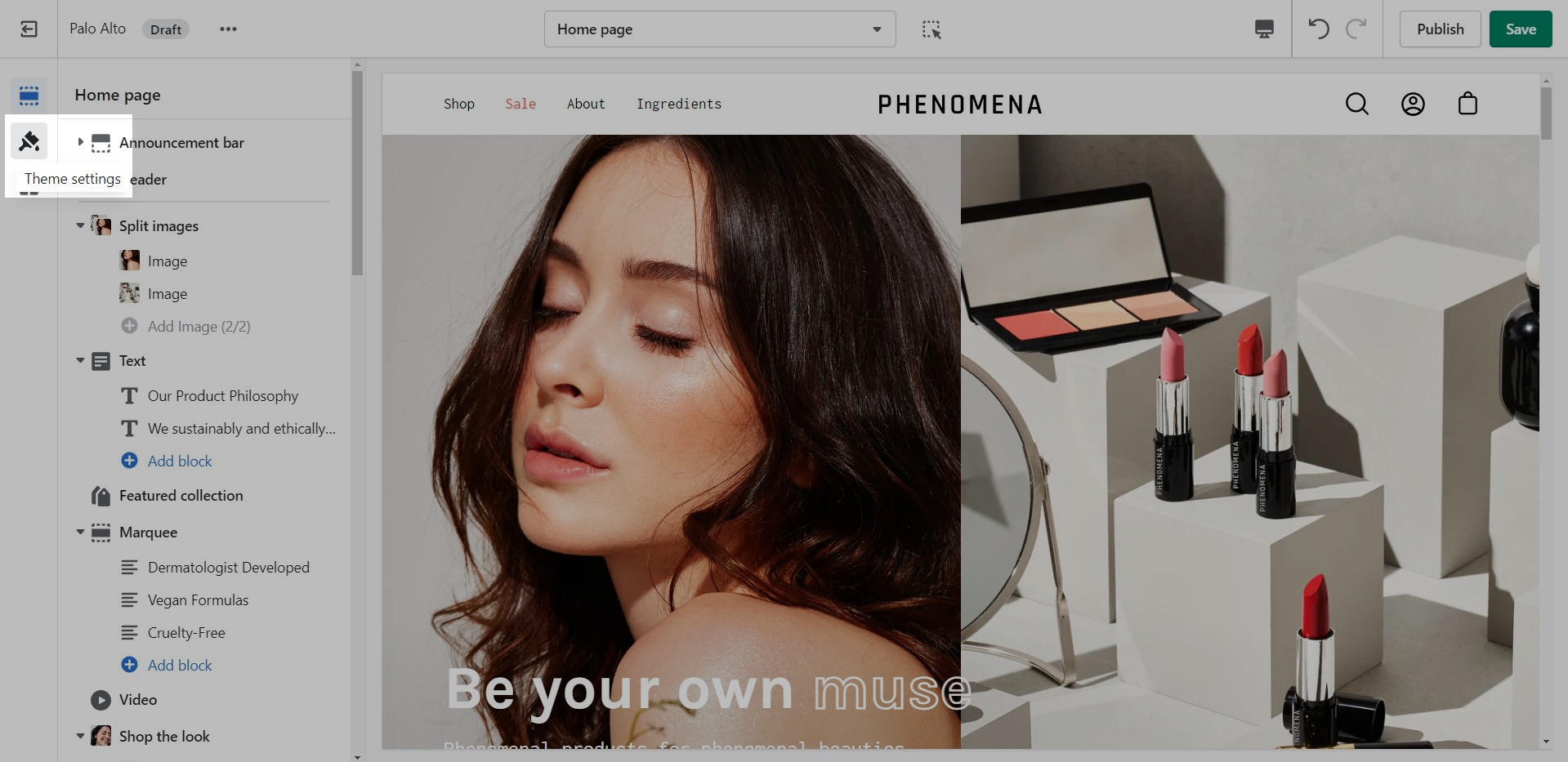
Apart from the individual section settings, there are also Theme Settings. These are a number of global settings grouped together for ease of use.