> For the complete documentation index, see [llms.txt](https://palo-alto.presidiocreative.com/llms.txt). Markdown versions of documentation pages are available by appending `.md` to page URLs; this page is available as [Markdown](https://palo-alto.presidiocreative.com/palo-alto-4.6/collections/collection-pages-promo.md).
# Collection pages promo
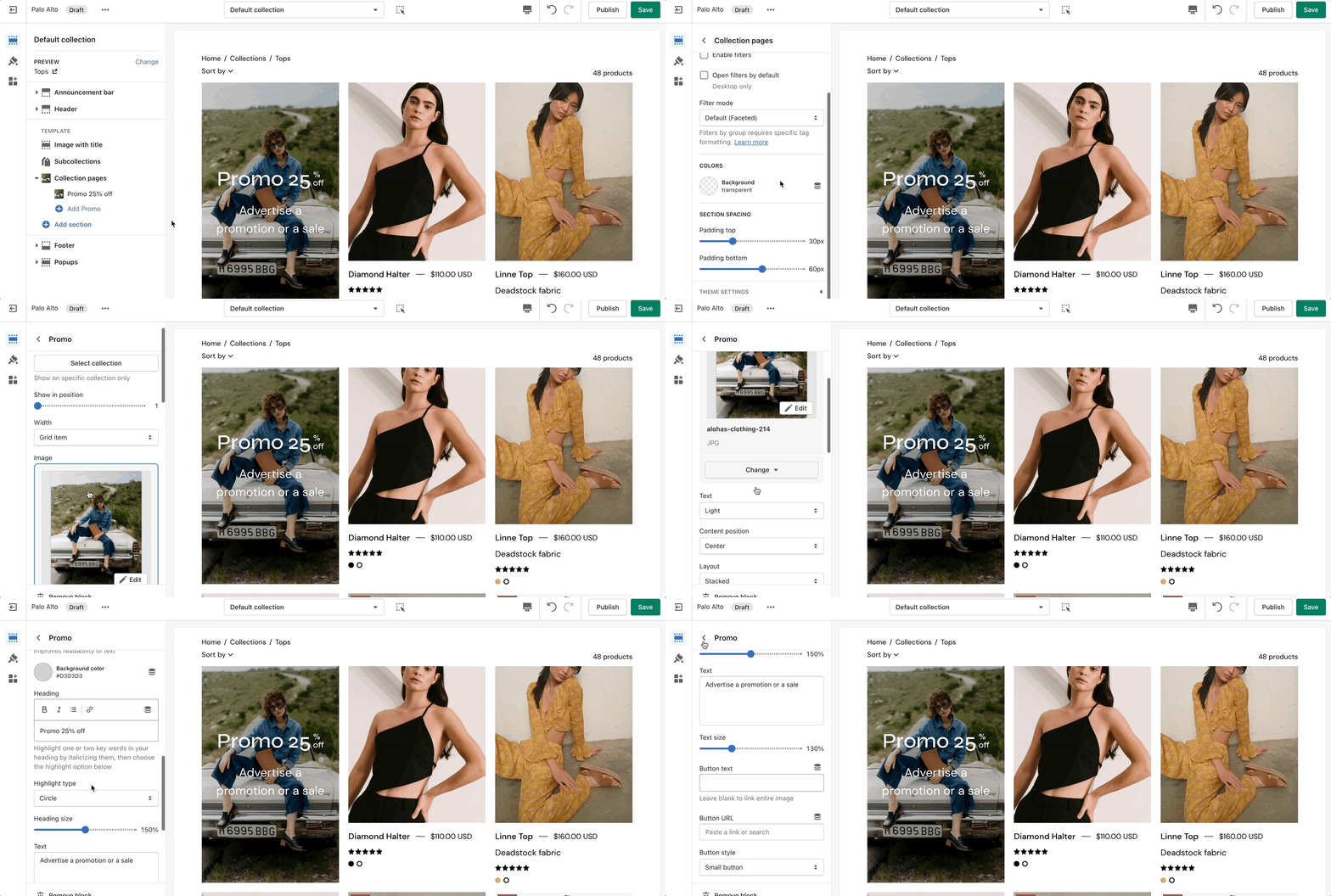
In Palo Alto, you can add a promo block to your **Collection pages** section.
### How the block works
To start, you need to open up the Theme Editor and open any Collection page.
The promo block allows you to change the background, heading, text, button text, button URL, and much more.
{% hint style="info" %}
Note: You can choose a collection here but this will only show the promo block for that one collection.\
\
Leave the setting empty if you want the promo block to be shown on all collection pages.
{% endhint %}
### Adding a new banner
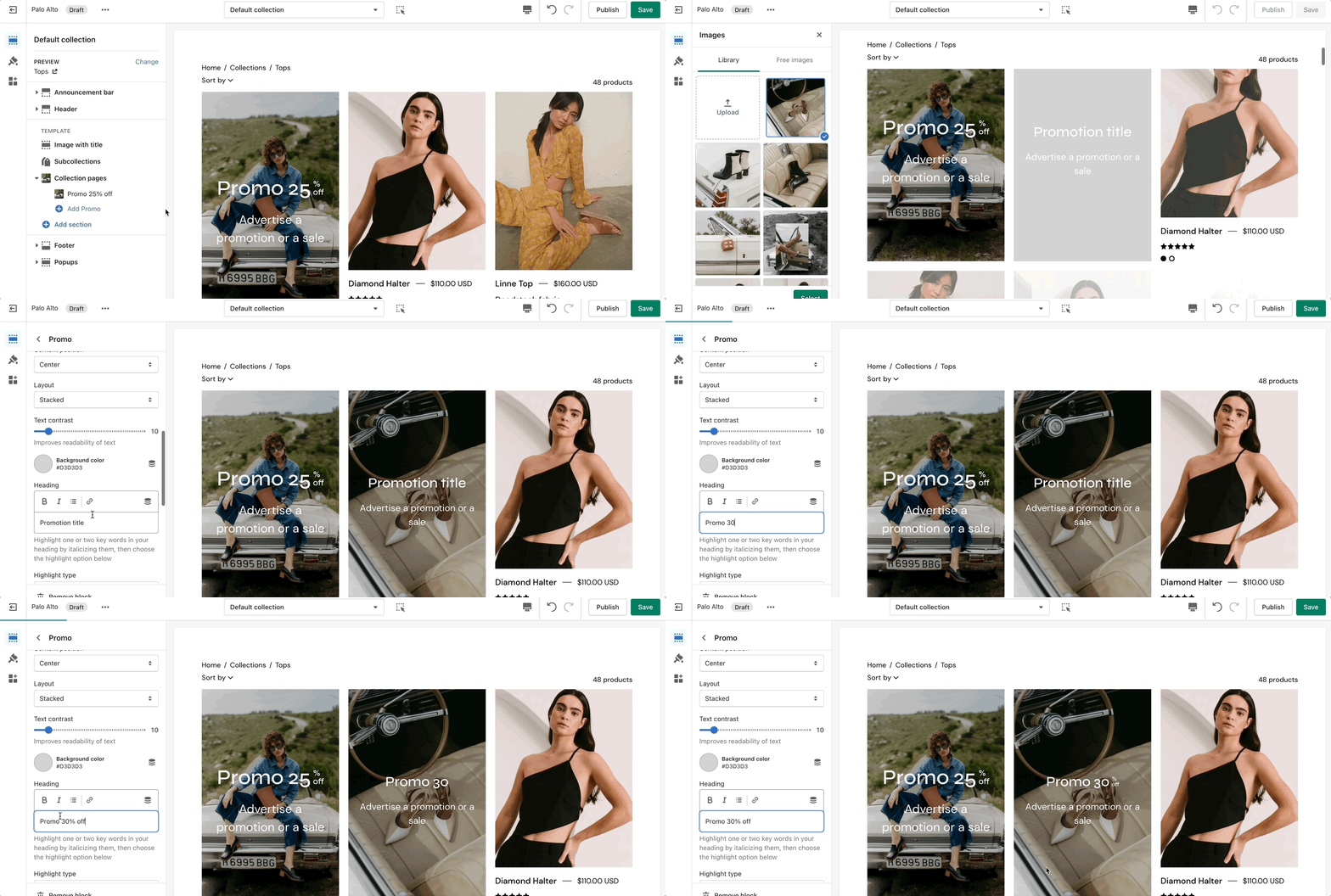
To add a new banner you need to add a new block to the Collection pages section.
#### Show a percentage discount
With Palo Alto 4.6, you have the option to show a percentage discount in the Collection promo blocks:
To change the position of each block, you have to set it from the block settings (you can **not** drag and drop them like most blocks).
{% hint style="info" %}
Please note that if the position set is unavailable (i.e. there are not enough products in the collection) the Promo banner will not be shown.
{% endhint %}