> For the complete documentation index, see [llms.txt](https://palo-alto.presidiocreative.com/llms.txt). Markdown versions of documentation pages are available by appending `.md` to page URLs; this page is available as [Markdown](https://palo-alto.presidiocreative.com/palo-alto-4.3/sections/text-sections.md).
# Text sections
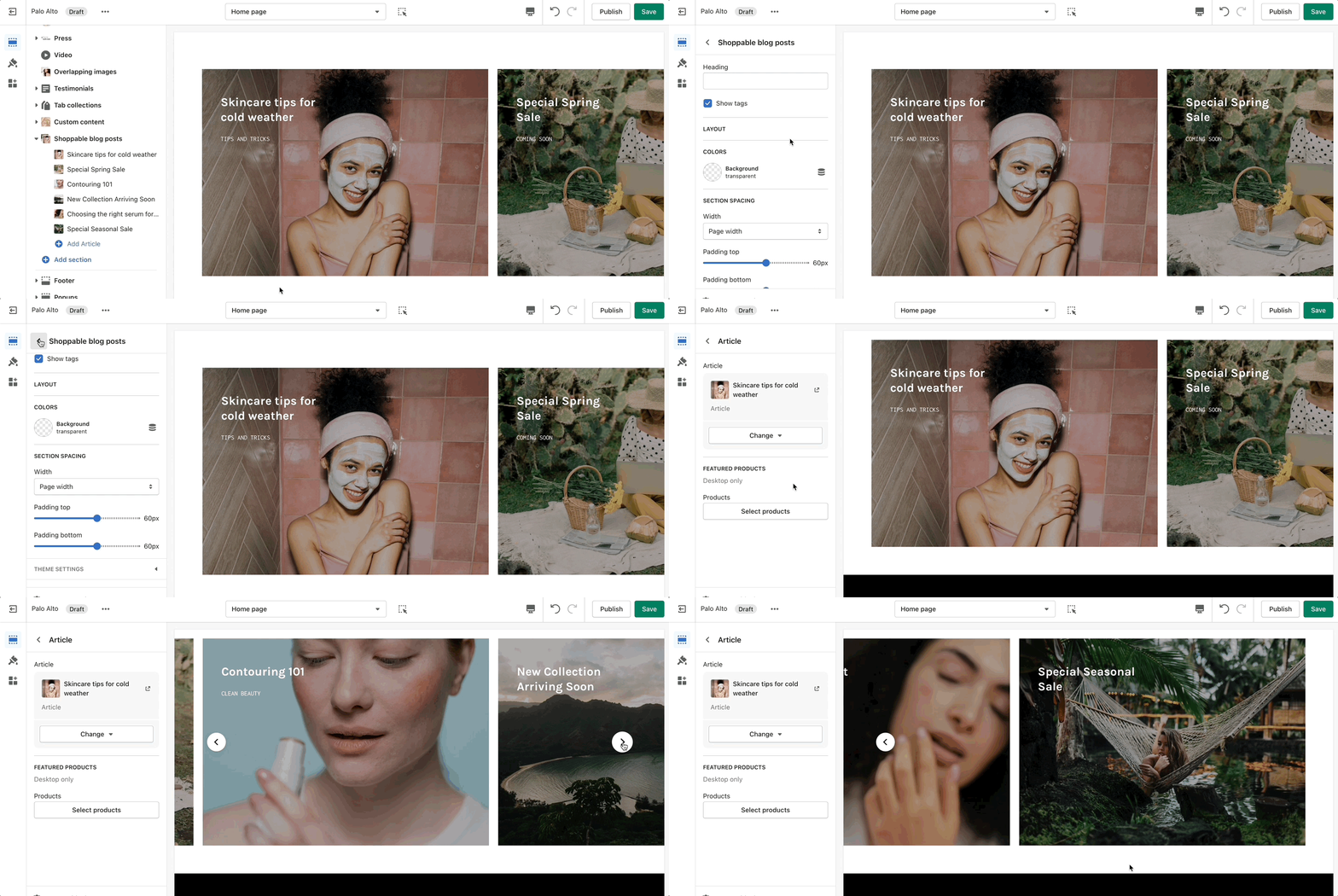
## Shoppable blog posts
### How It works
Highlight your latest and greatest blog posts. Use this section to generate traction and bring exposure to your blogs on any store page.
### Settings
Set the heading and background color for the section. Set the individual block settings for each article added.
{% hint style="success" %}
Add blocks by clicking on the small arrow next to the section then clicking 'Add block'.
{% endhint %}
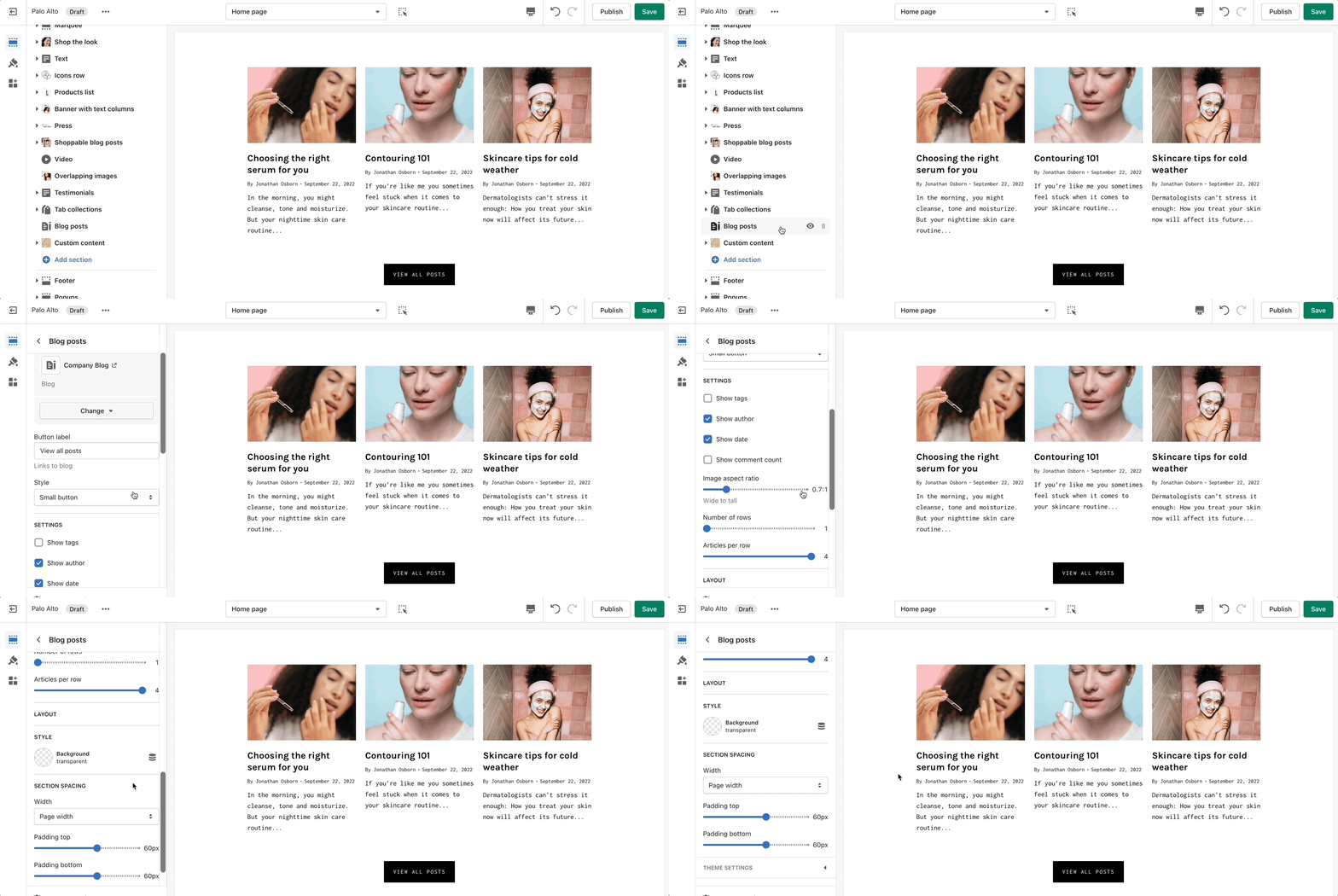
## Blog posts
### How It works
Showcase the latest posts from one of your blogs on your store pages.
### Settings
Set the background color and control the details of the section.
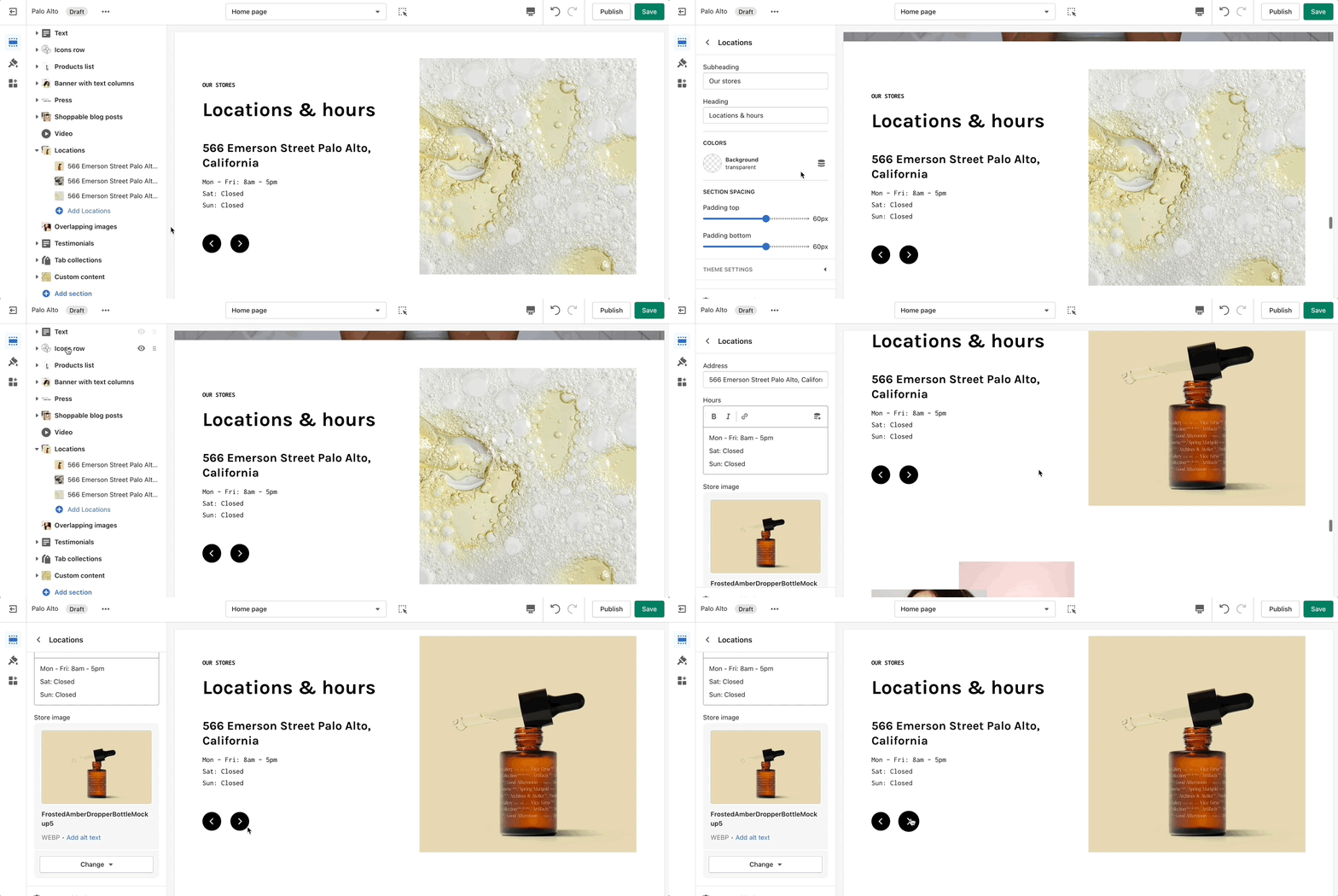
## Locations
### How It works
Let your customers know about your store locations. You can add more than one block if you have multiple stores.
### Settings
Set the general headings and colors of the section. Set different options for different blocks such as different working hours, images, or addresses.
{% hint style="success" %}
Add blocks by clicking on the small arrow next to the section then clicking 'Add block'.
{% endhint %}
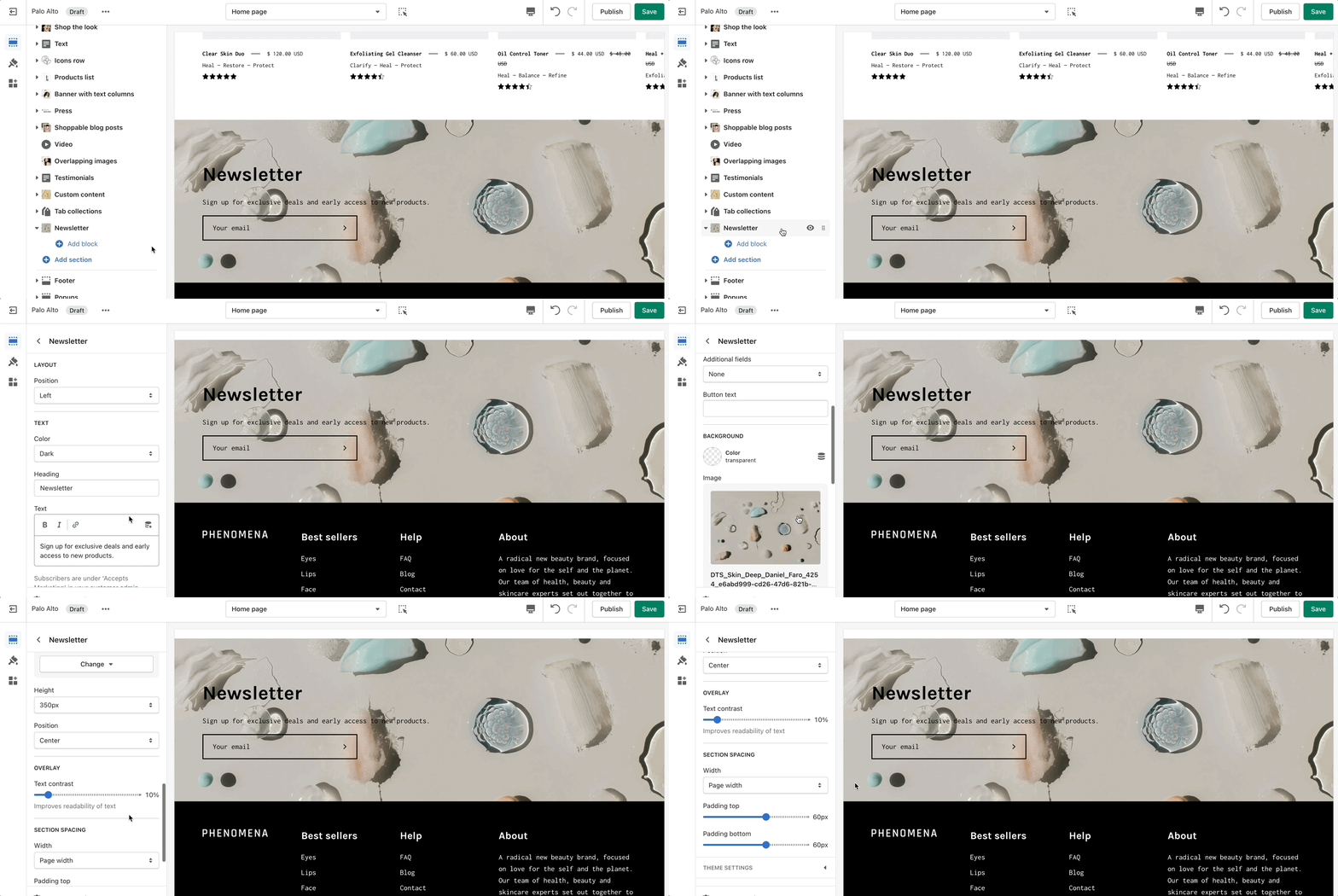
## Newsletter
### How It works
Display a small-sized newsletter signup message.
### Settings
Out of the box, there aren't any blocks for this section. It solely relies on blocks from third-party mailing apps to create a link between the newsletter subscribers and the mailing lists.
{% hint style="success" %}
Use mailing applications to integrate blocks and more advanced email marketing lists.
{% endhint %}
## Press
### How It works
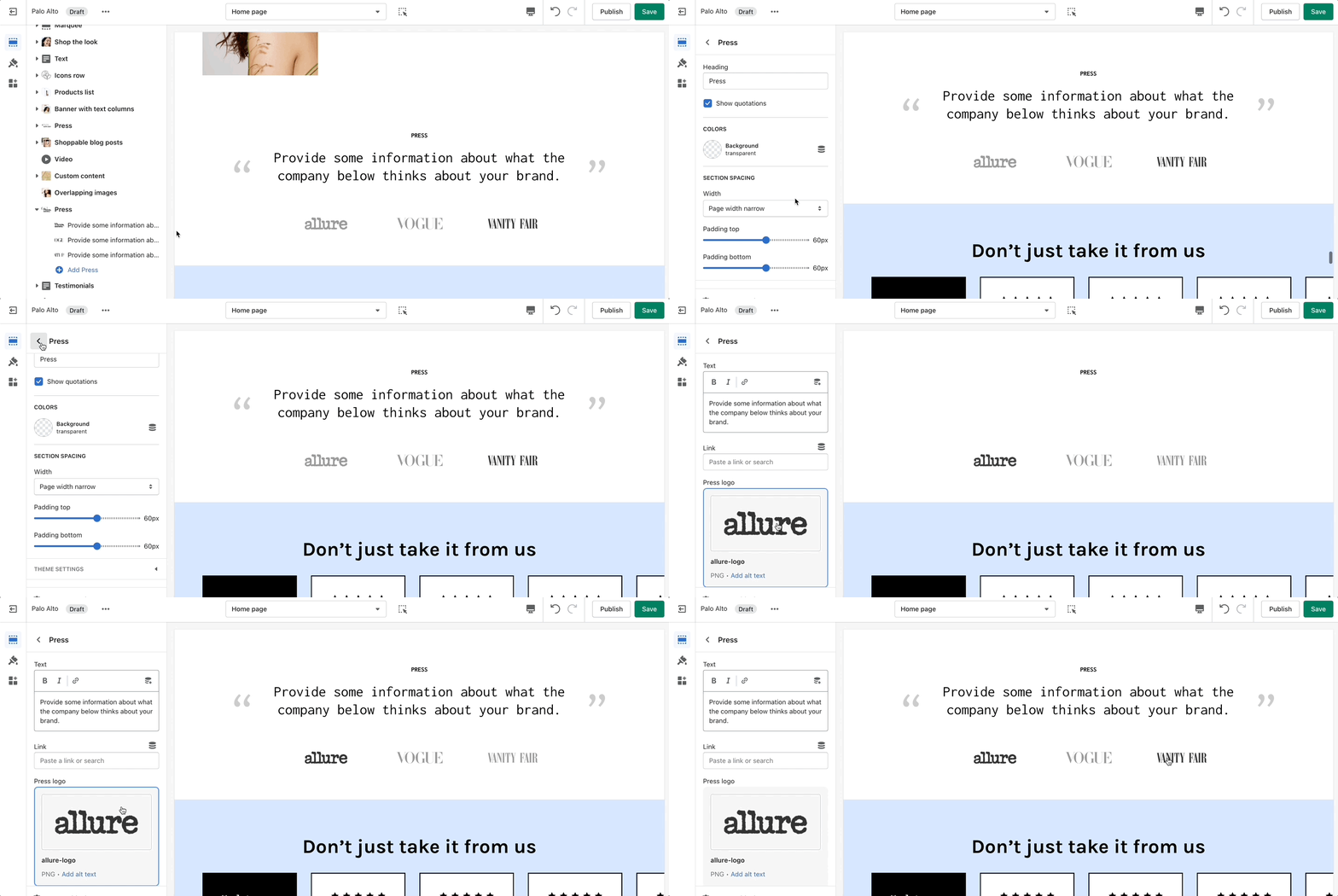
The 'Press' section can be used to present short bursts of information to your customers.
### Settings
{% hint style="success" %}
Add blocks by clicking on the small arrow next to the section then clicking 'Add block'.
{% endhint %}
## Text
### How It works
A commonly used section to break apart image-heavy setups.
### Settings
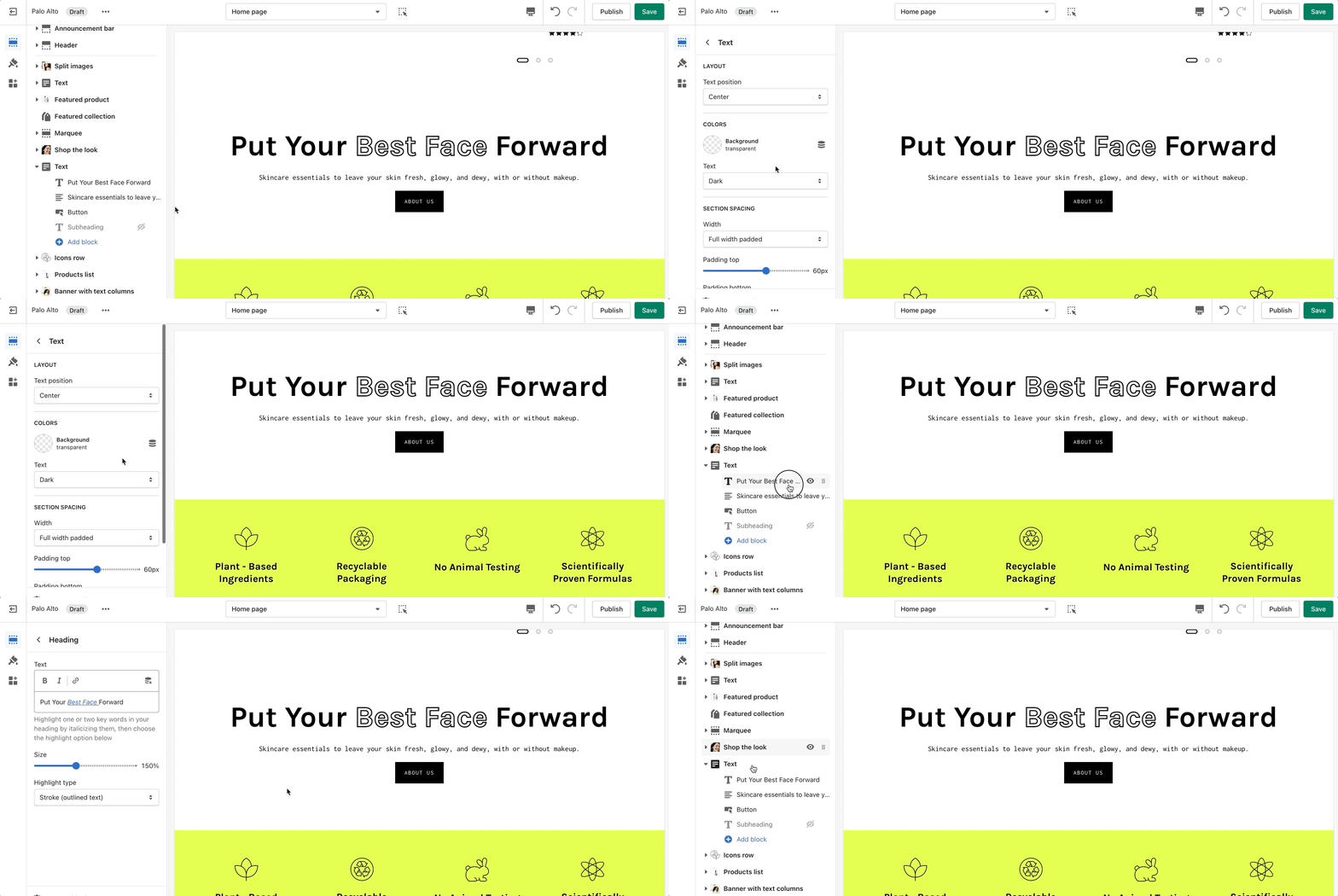
The 'Text' section allows for a ton of customization. Use this section to tell a story to your customers.
{% hint style="success" %}
Add blocks by clicking on the small arrow next to the section then clicking 'Add block'.
{% endhint %}
## Tabs
### How It works
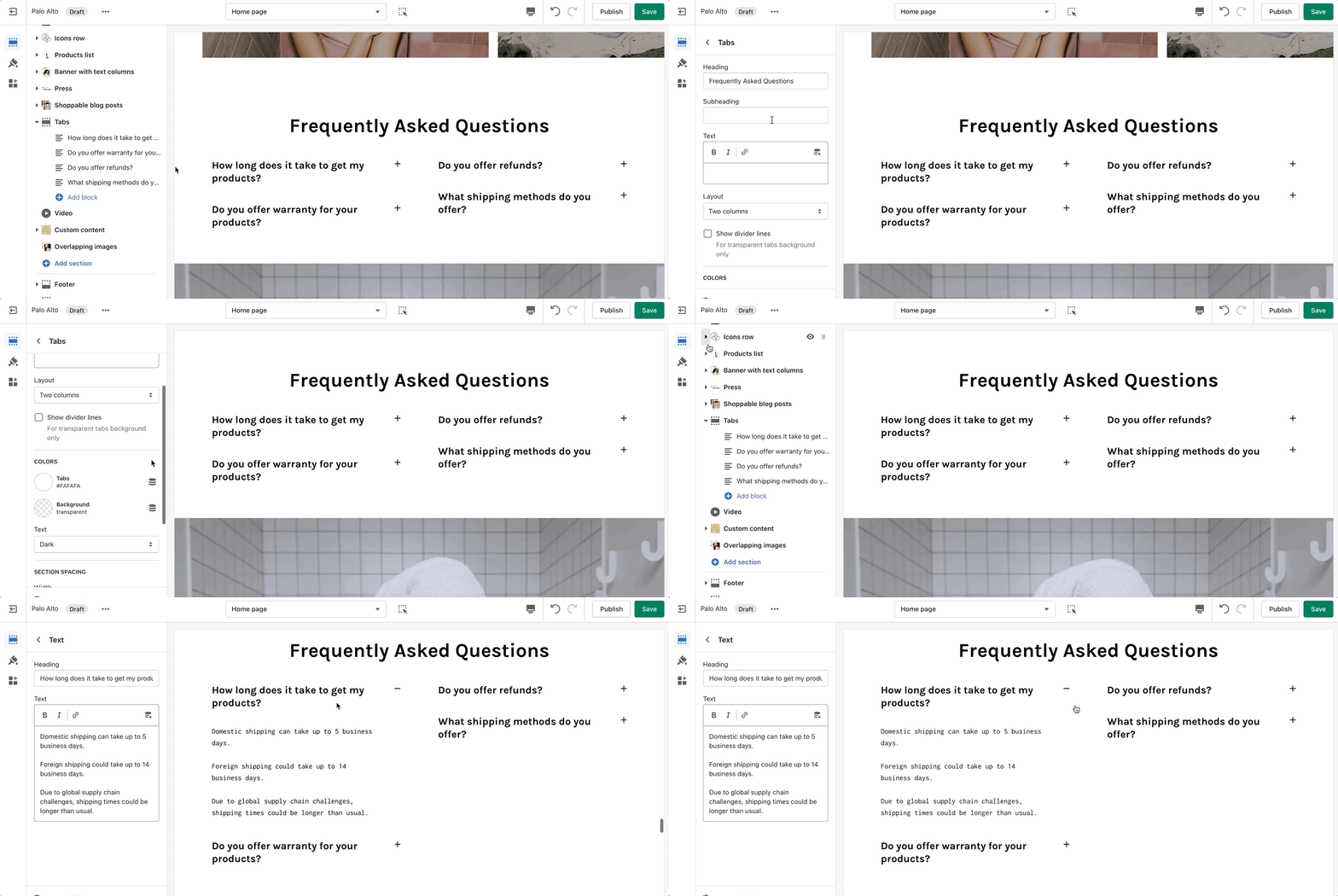
Palo Alto includes a 'Tabs' section to help you provide frequently asked questions. A place to promote your services, and brand strengths and also include product reviews.
### Settings
The blocks in this section help to create the individual tabs. Here you can add the heading and text for each question and answer. Add Text and Page.
{% hint style="success" %}
Add blocks by clicking on the small arrow next to the section then clicking 'Add block'.
{% endhint %}
## Testimonials
### How It works
Add quotes from business partners and client testimonials to your store pages.
### Settings
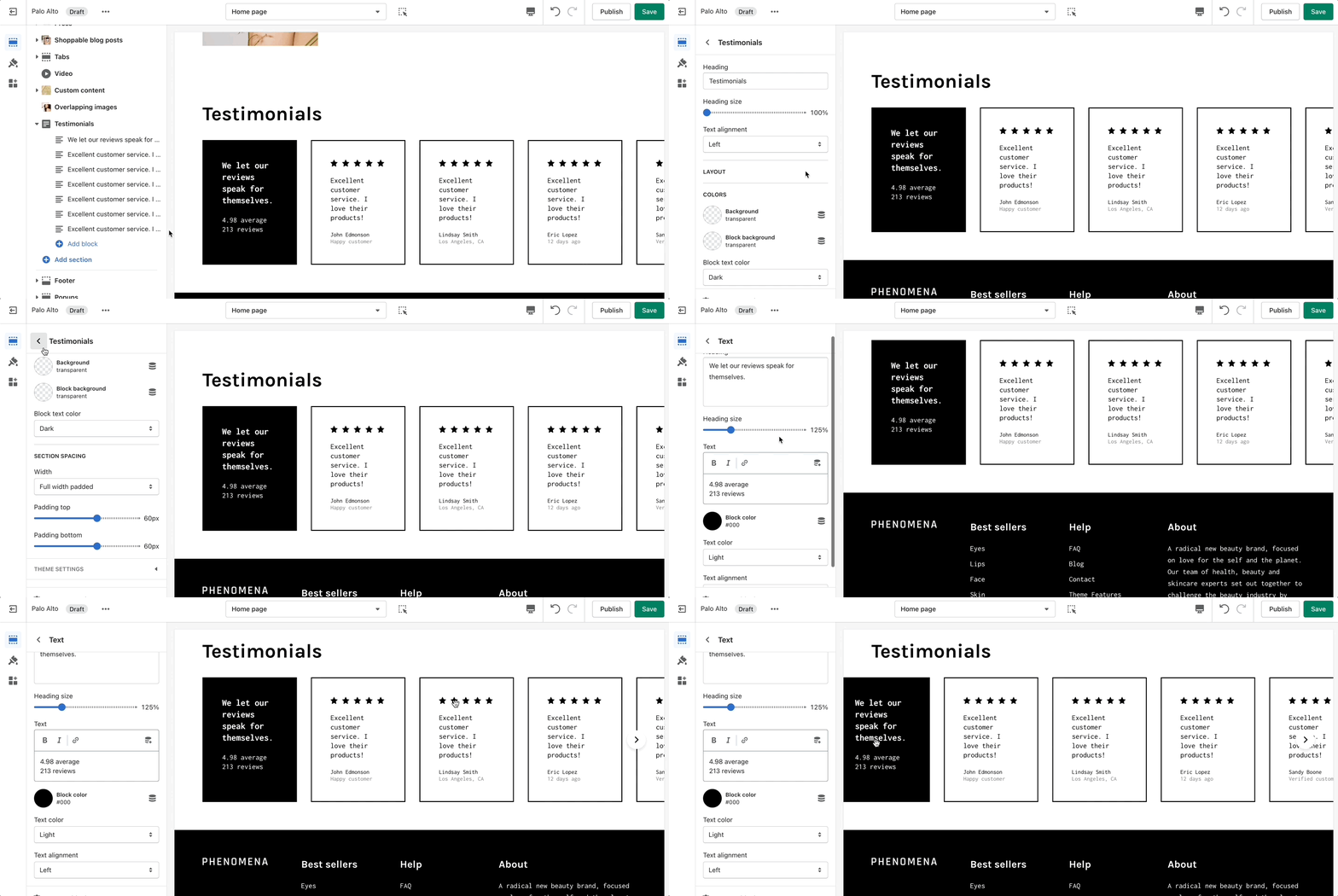
Add a heading and set the colors, alignment, and navigation style of this section. Add individual testimonial blocks to the section.
{% hint style="success" %}
Add blocks by clicking on the small arrow next to the section then clicking 'Add block'.
{% endhint %}
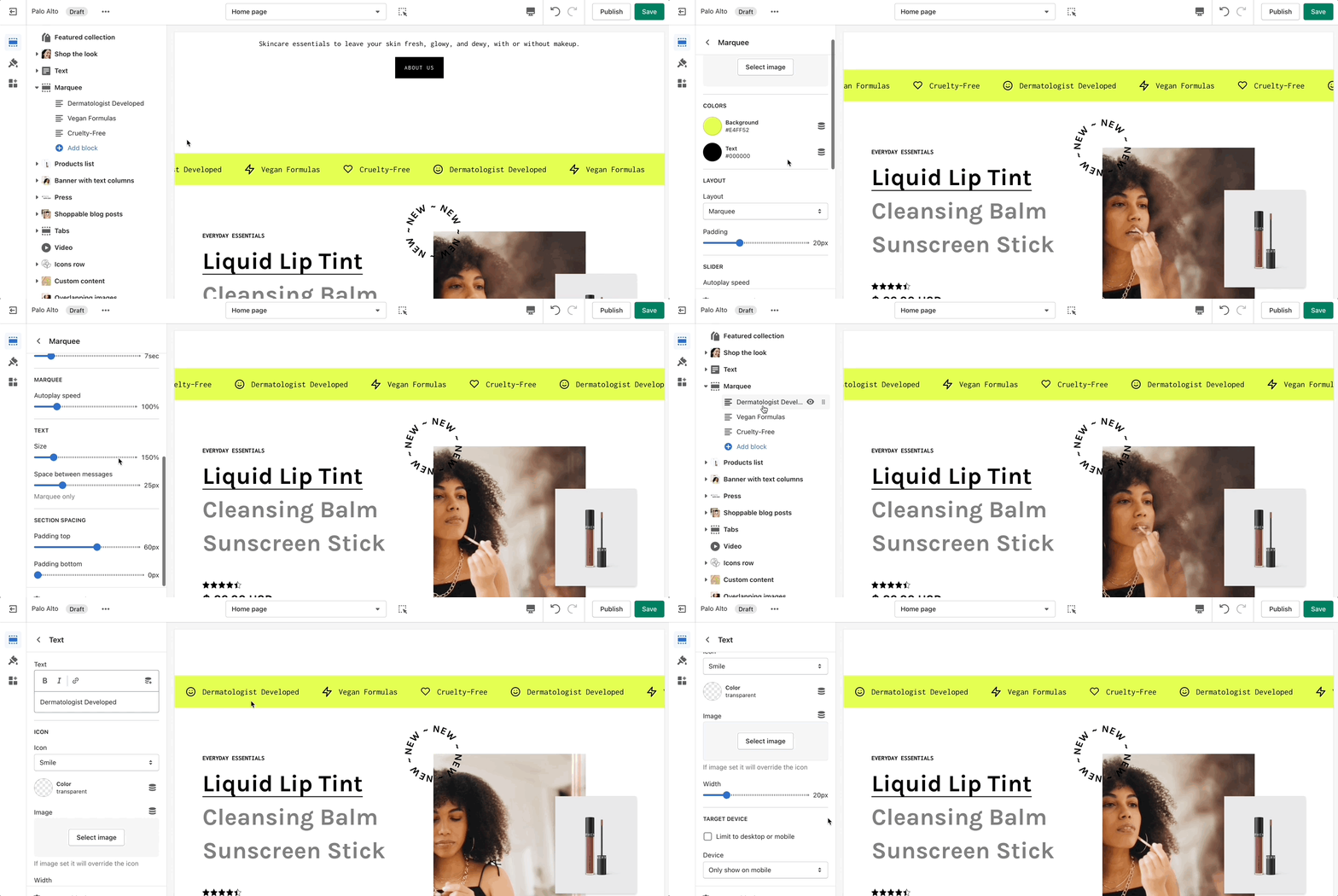
## Marquee
### How It works
Add an animated promotion line to your store pages.
### Settings
Set the background and colors for this section. Control the spacing and speed. Set the individual block settings.
Add Text, Free shipping message, or a Custom HTML blocck.
{% hint style="success" %}
Add blocks by clicking on the small arrow next to the section then clicking 'Add block'.
{% endhint %}
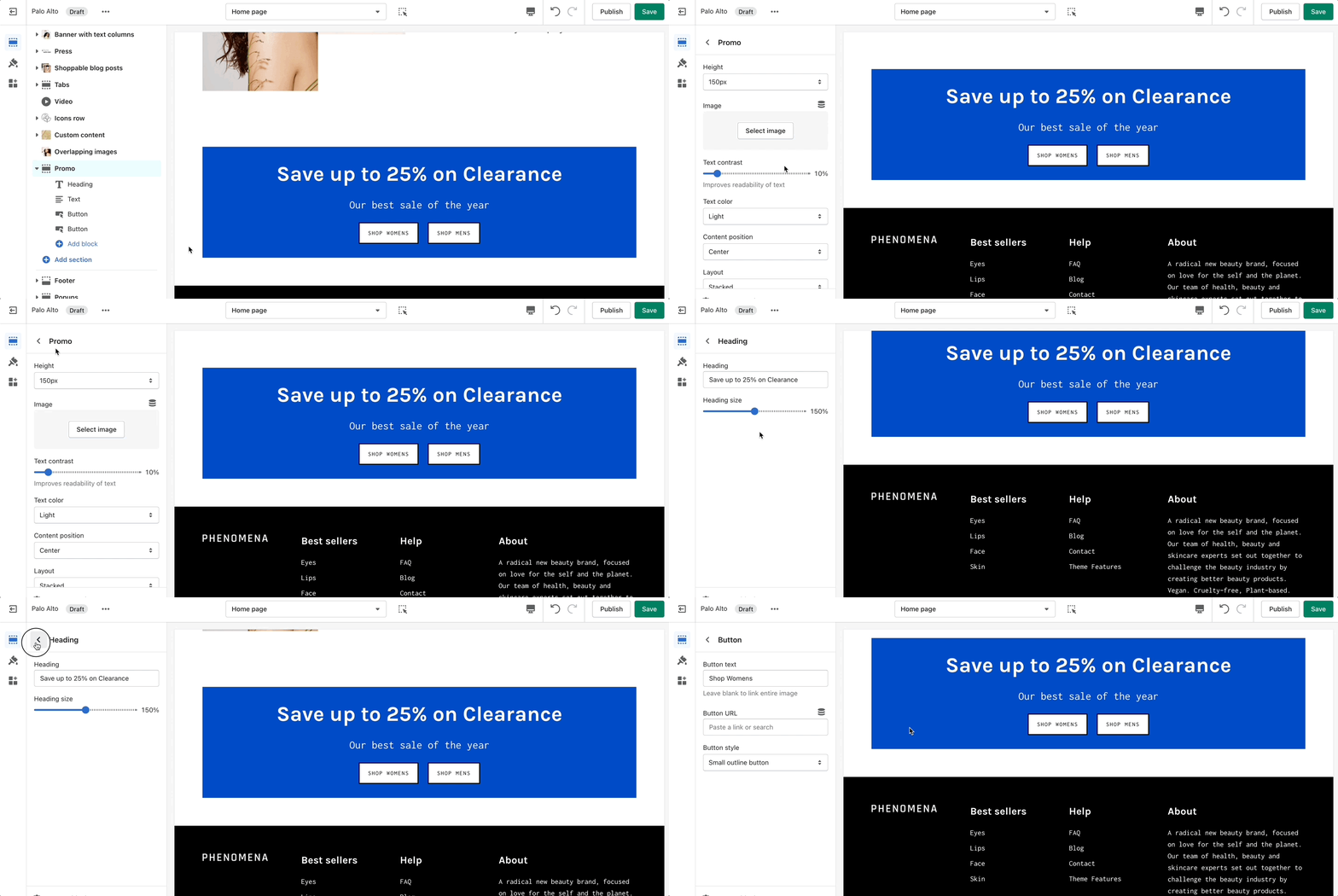
## Promo
### How It works
Use the 'Promo' section to add a simple banner image with text and promote to customers as they scroll along the page.
### Settings
Add Heading, Text, and buttons.
{% hint style="success" %}
Add blocks by clicking on the small arrow next to the section then clicking 'Add block'.
{% endhint %}