> For the complete documentation index, see [llms.txt](https://palo-alto.presidiocreative.com/llms.txt). Markdown versions of documentation pages are available by appending `.md` to page URLs; this page is available as [Markdown](https://palo-alto.presidiocreative.com/palo-alto-4.3/pages/palo-alto-pages.md).
# Using the new Palo Alto Pages
Palo Alto includes ready-to-use page templates for your store including:
* About
* Contact
* FAQ
* Default page
These templates make it easy for you to quickly add content and build out pages that add value to your customer experience and company branding.
## How to use page templates
### Creating a page
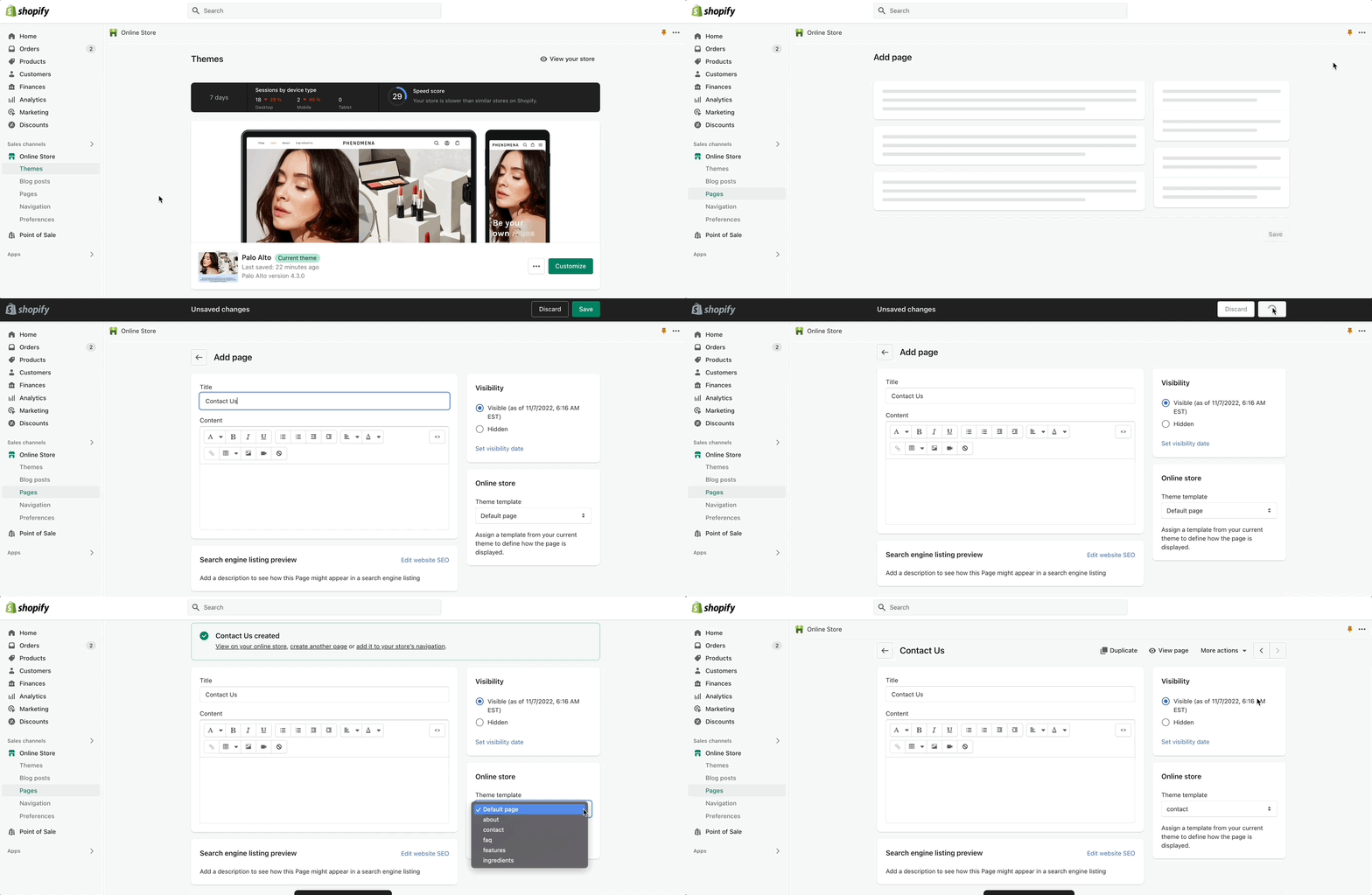
Pages are created in your Shopify Admin under Pages. Choose **Add page** to create a new page.
Give your page a title (required), the content is optional. Next, choose a **Theme template** to be used, also known as a **Page template:**
### Customizing pages
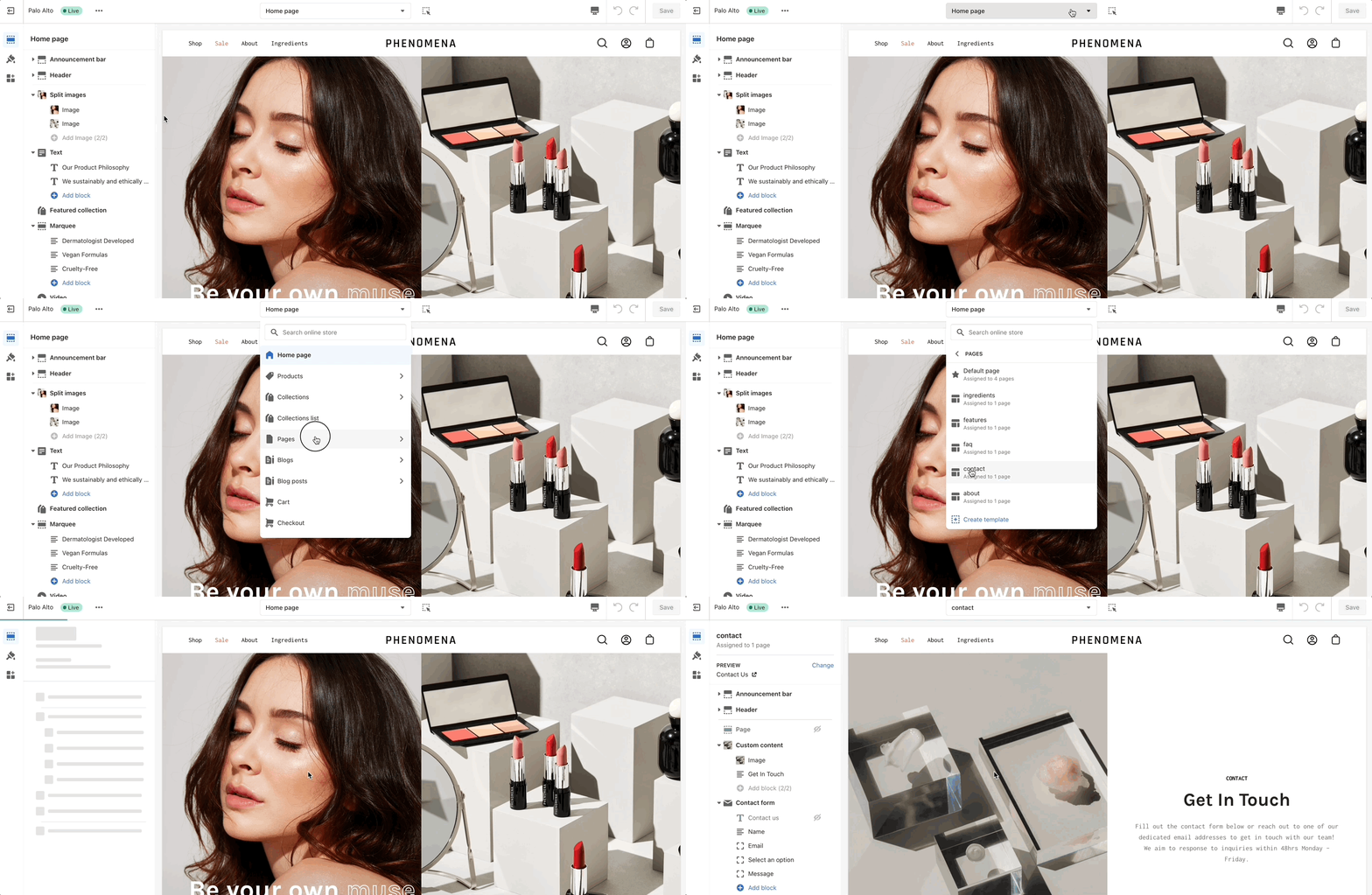
Using the Theme Editor, you can customize the template that's been assigned to your page:
You can start customizing the page with the pre-defined sections included in Palo Alto. You can hide, reorder, remove sections that are included and also add any new selection from Palo Alto's list of over 25+ sections.
Learn more about using sections and blocks in Palo Alto:
### Creating a new page template
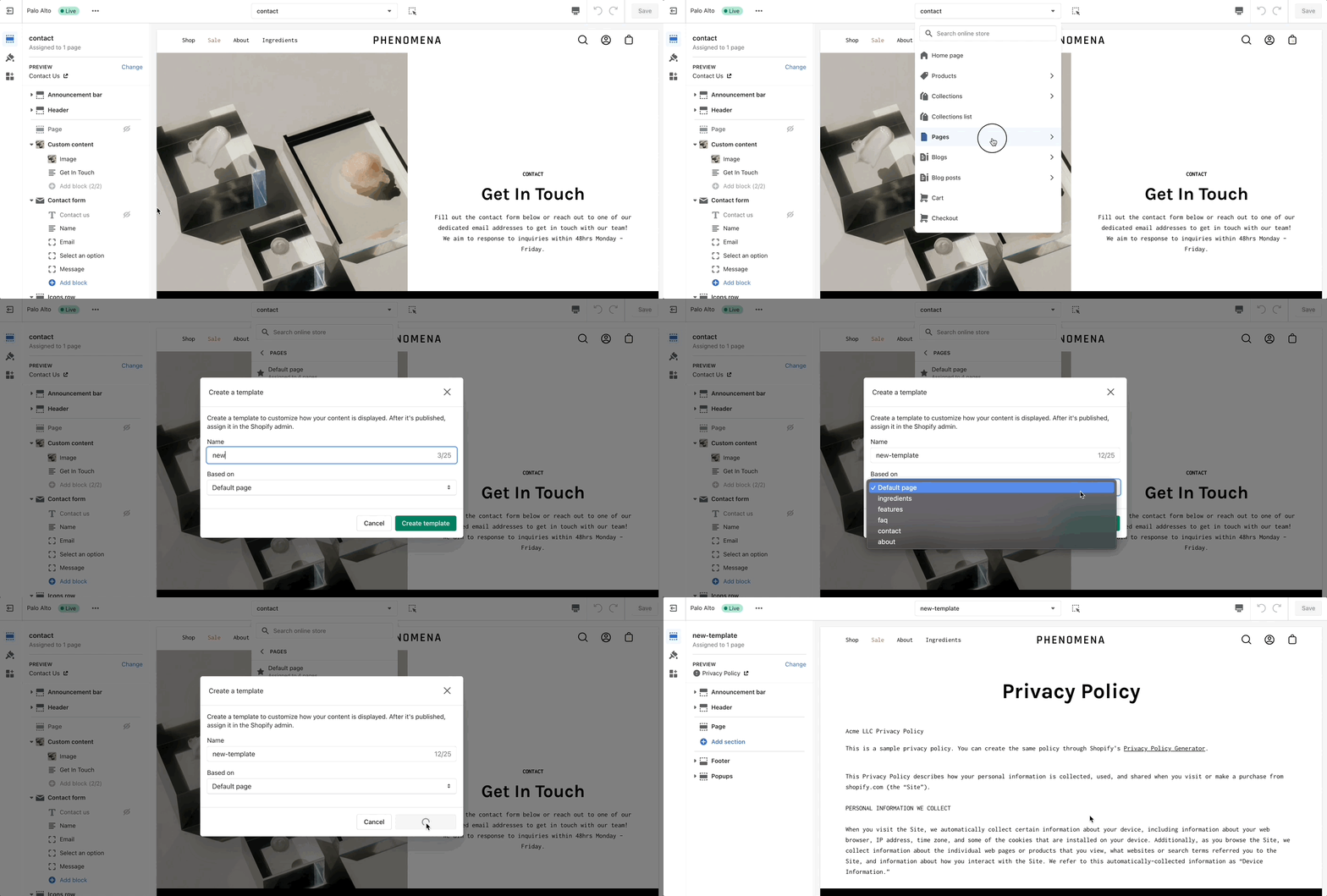
From the top drop-down menu select Pages and click on Create template. Give your new template a name and a template to base it on.
This will make it so that there are one or two sections predefined but they can be removed or hidden later.